Billing, invoices and payments
In short: Pay your subscription by card (instant, via Paystack) or by EFT / bank transfer (reconciled by the team). Request an emailed invoice with Email me an EFT invoice, pay outstanding invoices with Pay online, and download invoices from the Billing History tab or the expired page. You need the Manage Billing permission. Choosing or changing a plan is covered in Your subscription and plan.
Overview
This article explains how to pay for your ActiveDonor subscription and how to find, pay and download your invoices. An invoice is a request for payment; a proforma is a preliminary invoice issued before payment so you can pay by EFT; a tax invoice is the VAT receipt you get once a payment has cleared. Card payments are processed securely by Paystack, and invoices are issued through Xero.
Before you start
You'll need:
- The Manage Billing permission. Open the billing area from the gear / cog dropdown → Settings → Subscription (or the Subscribe item in the gear / cog dropdown). When your account is expired you're taken to the Account on hold (expired) page instead.
📌 Note: All prices include VAT at 15%.
Paying by card
Step 1: Choose your plan
On the Subscription page (trial picker or the Manage Plan area) or the expired page, choose your plan and billing period.
Step 2: Go to checkout
Click Pay by card (on the paid-plan cards the button is Card Payment; on the expired page it reads "Pay R{amount} & reactivate"). You're taken to Paystack's secure checkout.
Step 3: Pay
Enter your card details and complete the payment. Paystack returns you to ActiveDonor.
When the payment clears, your plan is activated or renewed automatically and the payment appears in your Billing History. Card payments give the fastest reactivation.
Paying by EFT (bank transfer)
There are two ways to pay by EFT.
Request an emailed invoice
On an annual plan card (trial picker or the recommended-plan card) or on the expired page, click Email me an EFT invoice. ActiveDonor creates an invoice in Xero and emails it to you with the PDF attached and payment instructions. The on-screen confirmation reads "Invoice {number} has been emailed to you with the PDF attached and payment instructions." If an unpaid invoice for that plan already exists, the same invoice is re-sent rather than a duplicate created ("Invoice {number} has been re-sent…"). The email also contains a link to view and download the invoice from Xero.
📌 Note: If you're already paid up on the plan you're requesting, ActiveDonor won't raise another invoice. Instead you see an info pop-up titled "You're all paid up" reading "Your subscription is paid up until {date} — no payment is needed right now," with a Got it button. This only blocks invoices for the same plan you've already paid for — requesting an invoice for a different plan (a genuine upgrade or change) still works normally.
Pay into the bank account directly
The Account on hold (expired) page shows ActiveDonor's banking details so you can pay by EFT from your own bank:
- Account holder: ActiveApps (Pty) Ltd
- Bank: First National Bank
- Account number: 62713712041
- Branch code: 250655
- EFT Reference: your workspace's short code (shown in green on the page)
⚠️ Important: Always use the EFT Reference (your workspace short code) shown so your payment can be matched to your account. After paying, email your proof of payment to [email protected]. EFT payments are reconciled by the ActiveDonor team, so reactivation is not instant.
Outstanding invoices
If you have unpaid Xero invoices, an Outstanding Invoices box appears at the top of the Subscription page (and the latest one is highlighted on the expired page). It lists each invoice's Date, Invoice # and Amount, with a Pay online button.
- Pay online opens the invoice's secure Xero payment page in a new tab, where you can pay by card.
- You can also pay any outstanding invoice by EFT using your workspace short code as the reference.
On the expired page, the latest outstanding invoice is shown as an Outstanding Invoice card with the amount due and a Download button to save the invoice PDF.
Billing History and invoices
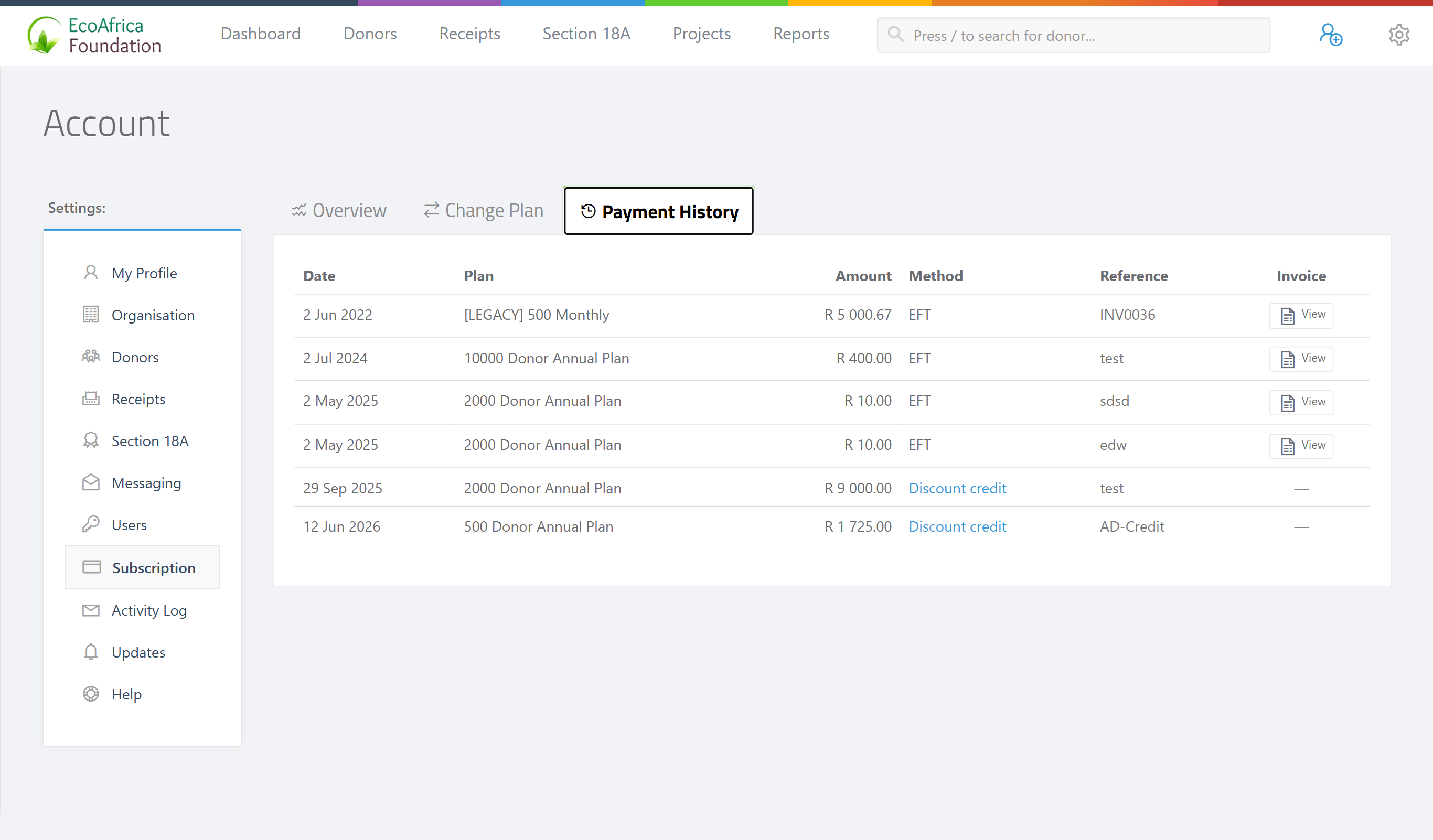
On the Subscription page, the Billing History tab lists every successful payment with its Date, Plan, Amount, Method, Reference and an Invoice link:
- The Method column shows the payment channel (for example Card or Eft). Payments applied as an ActiveDonor discount show "Discount Credit" and have no invoice (the Invoice column shows a dash).
- The Invoice link opens that payment's invoice (at the
/invoice/{id}address) — a tax invoice showing your charity's details, ActiveDonor's company and VAT details, the plan and period, the amount, and a PAID status. You can save or print it.
📌 Note: If you have no payments yet, the tab reads "Any payments credited to your account will be shown here."
About discounts
ActiveDonor does not have a self-service discount-code or coupon box at checkout. Discounts are applied by the ActiveDonor team as a credit on your account: they appear in Billing History with the Method shown as "Discount Credit" and reduce what you owe (a sufficient credit balance can even cover a plan upgrade with no new payment). If you've been promised a discount before paying your annual subscription, contact ActiveDonor support before you pay so they can apply the credit.
How credit is applied
If you've paid more than you've been charged so far (for example a pro-rated credit from changing an annual plan, or a discount credit), the surplus is shown as a Credit balance on the Subscription tab and is applied automatically to your next invoice. A sufficient credit balance can also cover a plan upgrade without a new payment. See Your subscription and plan.
What this does not do
- There's no discount-code field at checkout — discounts are applied by the team as account credit (see above).
- Paying by EFT does not reactivate you instantly — payments are reconciled manually by the team.
- The billing area does not store your card on ActiveDonor's servers — card details are handled by Paystack's secure checkout.
Field reference
| Term | Meaning |
|---|---|
| Invoice | A request for payment, issued through Xero. |
| Proforma | A preliminary invoice issued before payment, used to pay by EFT. |
| Tax invoice | The VAT receipt produced once a payment has succeeded (status PAID). |
| EFT reference / short code | The unique code you must enter as the reference for a bank transfer so your payment is matched to your workspace. |
| Method / channel | How a payment was made — for example Card, Eft, or Discount Credit (AD_CREDIT). |
| Credit / credit balance | Payments or credits exceeding charges so far; applied automatically to your next invoice. |
Common issues & solutions
| What you see | What it means | How to fix it |
|---|---|---|
| "Could not generate invoice" / "We could not generate your invoice automatically" | The invoice couldn't be created automatically. | Email [email protected] (or [email protected]) and the team will help. |
| Your card was declined / a payment error at Paystack checkout. | The card payment didn't complete at Paystack. | Try again, use a different card, or check with your bank. You can also request an EFT invoice and pay by bank transfer instead. |
| You paid by EFT but your account is still on hold. | EFT payments are reconciled manually, not automatically. | Make sure you used your short code as the reference, then email proof of payment to [email protected] so the team can reactivate you. |
| The invoice email hasn't arrived. | It may be in spam, or sent to the account email. | Check your spam folder. You can also pay any outstanding invoice via Pay online on the Subscription page, or download it from the expired page. |
| A payment shows Discount Credit with no invoice. | That payment was an ActiveDonor discount applied as credit, not a card/EFT charge. | This is normal — discount credits have no tax invoice. |
| "You're all paid up" — no invoice is sent when you click Email me an EFT invoice. | You're already paid up on that same plan, so no payment is due yet. The pop-up shows the date you're paid until. | Nothing is owed right now. To pay ahead for a different plan (an upgrade or change), request the invoice for that plan instead. |
| You can't see billing options at all. | You don't have the Manage Billing permission. | Ask a Super Admin to grant Manage Billing. See Roles and permissions. |
FAQ
How do I request an invoice? On an annual plan card or the expired page, click Email me an EFT invoice. ActiveDonor emails you the invoice with the PDF attached and payment instructions.
How do I download an invoice? From the Billing History tab, click the Invoice link on the payment. On the expired page, use the Download button on the Outstanding Invoice card.
My card was declined / I got a payment error — what now? Try again or use another card; the payment is handled by Paystack, so check with your bank if it keeps failing. You can also pay by EFT instead.
Can I enter a discount code before paying my annual subscription? There's no discount-code box. Contact ActiveDonor support before paying and they'll apply the discount as account credit, which shows as Discount Credit in your Billing History.
I paid by EFT but I'm still locked out. EFT payments are reconciled by hand. Confirm you used your workspace short code as the reference, then email proof of payment to [email protected].
What are ActiveDonor's banking details? Account holder: ActiveApps (Pty) Ltd · Bank: First National Bank · Account number: 62713712041 · Branch code: 250655 · Reference: your workspace short code.
How do I pay an outstanding invoice? Use the Pay online button in the Outstanding Invoices box to pay by card via Xero, or pay by EFT using your short code as the reference.
Related
Need a hand?
If a payment won't go through or an invoice won't generate, email [email protected] with your charity name and the payment reference (from Billing History) and we'll help.