IT3(d) settings: Submitting Entity vs Reporting Entity
In short: Before you can generate an IT3(d) file, complete three panels — Submission File Header, Submitting Entity, and Reporting Entity. The Reporting Entity is your organisation (the PBO whose certificates these are). The Submitting Entity is who sends the file to SARS — either ActiveDonor (one-click) or Other (manual upload). If you pick ActiveDonor, you must also tick the authorization checkbox.
Overview
The IT3(d) is the electronic data file a Section 18A-approved organisation must send to SARS to declare the certificates it has issued. Before you can generate or submit that file, you complete the IT3(d) Settings, which have three parts: the Submission File Header, the Submitting Entity, and the Reporting Entity. This article explains the two "entity" concepts — which are easy to confuse — and how to complete each.
You reach these settings from certificate settings, on the IT3(d) Settings tab. (The first tab, Section 18A Layout, is the certificate design — see Certificate settings.) The page is titled IT3(d) Settings.
Submitting Entity vs Reporting Entity — the key difference
- The Reporting Entity is your organisation — the Section 18A-approved PBO (or the NPO/Trust) that issued the certificates and is reporting them. This cannot be an individual. The settings describe it as "Details of the Section 18A Approved Entity (PBO) or Donation Recipient (Typically this is the NPO or Trust - This cannot be an Individual)".
- The Submitting Entity is who physically sends the file to SARS on your behalf — either ActiveDonor (for one-click submission) or Other (someone who uploads the file manually, such as your accountant or tax practitioner).
💡 In one line: The Reporting Entity is who the certificates belong to; the Submitting Entity is who delivers the file to SARS.
Choosing the Submitting Entity
At the top of the IT3(d) Settings page is the heading "Who will be submitting the IT3(d) file to SARS:" with a dropdown. The options are:
- -- Please select -- (no choice yet)
- ActiveDonor — "Select ActiveDonor for 1-click submission direct to SARS. No manual upload required (recommended)."
- Other — "Choose Other for Accountant, Tax Practitioner etc. Manual upload via HTTPS required."
Pick ActiveDonor to submit straight from the app with one click. Pick Other if you (or your accountant) will download the file and upload it to SARS yourself over HTTPS.
⚠️ Important: You can't change the submitting entity once you've submitted a file. The page then shows: "You have already submitted an IT3(d) file. You cannot change the submitting entity…"
The authorization step (ActiveDonor only)
If you choose ActiveDonor as the Submitting Entity, you must authorize ActiveDonor to submit on your behalf before the one-click submission becomes available. On the Reporting Entity form there's an authorization checkbox labelled: "I authorize Active Apps (Pty) Ltd to act as our IT3(d) Submitting Entity to SARS and agree to the terms of the IT3D Submission Authorization Agreement."
Until you tick and save this, you see the alert "You have not authorized ActiveDonor as the submitting entity to SARS." and the IT3(d) Management page offers an Authorize Submission button instead of Submit to SARS. (Active Apps (Pty) Ltd trades as ActiveDonor; under the agreement it acts as the Service Provider / Submitting Entity and your organisation is the Client / Reporting Entity / PBO.)
Completing the three sections
The IT3(d) Settings page has three collapsible panels:
1. Submission File Header
The technical header of the file (Test vs Live, channel, source identifier). See IT3(d) submission file headers (Test/Live, channel, source identifier) for the field-by-field detail.
2. Submitting Entity
Details of who submits. When you choose ActiveDonor, ActiveDonor's own details are used automatically. When you choose Other, you complete the submitter's details. The required fields are: Nature of Person, Surname / Registered Name, Identification Type, Identification Number, Tax Reference Number, Postal Address Line 1, Postal Code, Cellphone Number and Contact Email.
3. Reporting Entity
Your organisation's details (see the fields below).
Reporting Entity fields
The Reporting Entity is your PBO/NPO/Trust. Its Nature of Person is limited to entity types that can be Section 18A-approved:
- Other Company (
OTHER_CO) - Trust (any type) (
INTERVIVOS_TRUST) - Other Entity (
UNINCORPORATED_BODY_OF_PERSONS) - Association not for gain (
ASSOC_NOT_FOR_GAIN)
Required Reporting Entity fields:
- Nature of Person (from the limited list above)
- Registered Name
- Trading Name
- Tax Reference Number
- Exemption Reference Number (PBO Number) — your SARS Section 18A approval number
- Cellphone Number
- Contact Email
- Postal Address Line 1
- Postal Code
Saving
Each panel saves on its own. Complete and save all three (and, for ActiveDonor, tick the authorization checkbox) before generating or submitting an IT3(d) file. If anything is missing, generating the file is blocked with "Please complete the IT3D settings first."
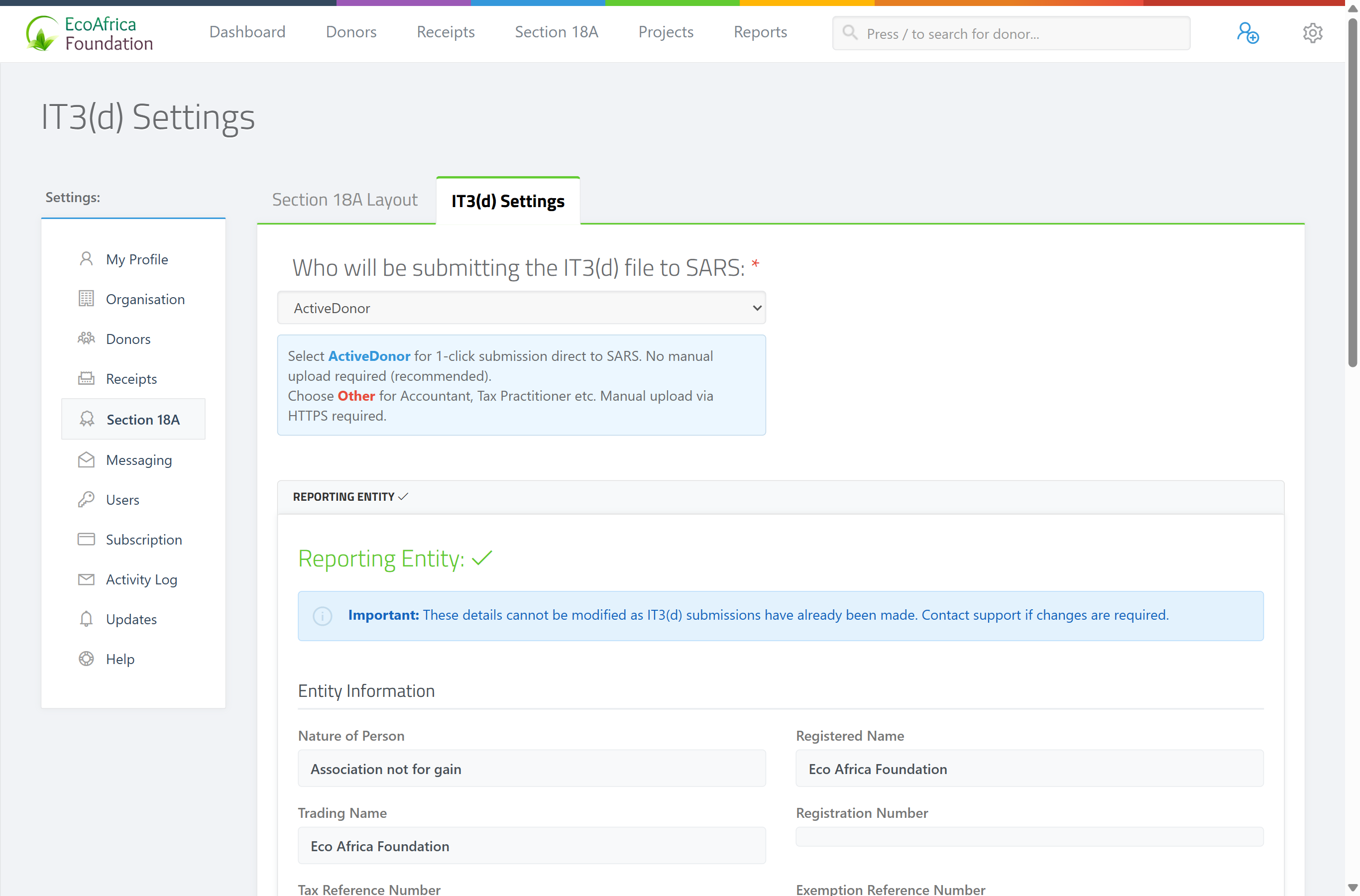
Field reference (Reporting Entity)
| Field | Required? | Notes |
|---|---|---|
| Nature of Person | Yes | Other Company, Trust (any type), Other Entity, or Association not for gain |
| Registered Name | Yes | Your organisation's registered name |
| Trading Name | Yes | Your trading name |
| Tax Reference Number | Yes | Your SARS tax reference |
| Exemption Reference Number (PBO Number) | Yes | Your Section 18A PBO approval number. Must be exactly 9 digits — no spaces, dashes or other characters. |
| Cellphone Number | Yes | Contact cellphone |
| Contact Email | Yes | Contact email |
| Postal Address Line 1 | Yes | Postal address |
| Postal Code | Yes | Postal code |
Common issues & solutions
| What you see | What it means | How to fix it |
|---|---|---|
| "Please complete the IT3D settings first." | One of the three panels is incomplete. | Fill in the Submission File Header, Submitting Entity and Reporting Entity and save each. |
| "You have not authorized ActiveDonor as the submitting entity to SARS." | You chose ActiveDonor but didn't tick the authorization checkbox. | Tick it on the Reporting Entity form and save; then Submit to SARS appears. |
| The Submitting Entity dropdown is locked. | You've already submitted a file. | The submitting entity can't be changed after the first submission. |
| I can't pick "Individual" for the Reporting Entity. | The Reporting Entity must be the PBO/NPO/Trust. | Choose one of the four entity types (Other Company, Trust, Other Entity, Association not for gain). |
| "Exemption Reference (PBO Number) must be 9 digits long (no spaces, dashes or other characters)." | The PBO number you entered isn't exactly 9 digits. | Enter your 9-digit PBO/exemption reference number with no spaces or dashes. If yours looks like 10 digits, check you aren't including a check digit or confusing it with your tax reference number; contact support if a genuine 9-digit number is still rejected. |
FAQ
What's the difference between the Reporting Entity and the Submitting Entity? The Reporting Entity is your organisation (whose certificates these are). The Submitting Entity is who delivers the file to SARS — ActiveDonor (one-click) or Other (manual upload).
How do I enable one-click submission to SARS? Choose ActiveDonor as the Submitting Entity and tick the authorization checkbox on the Reporting Entity form, then save.
Can I change who submits later? No — once you've submitted a file the submitting entity is locked.
Why can't I select "Individual" as the Reporting Entity? A Section 18A reporting entity must be a PBO/NPO/Trust, not a person. Pick one of the four allowed entity types.
My PBO number is 10 digits but the form only accepts 9 — what do I do? The Exemption Reference (PBO) Number must be exactly 9 digits. A 10-digit value usually means an extra check digit or the tax reference number has been included. Enter just the 9-digit PBO number, with no spaces or dashes. If a genuine 9-digit number is rejected, contact support.