Configuring donor settings and capture forms
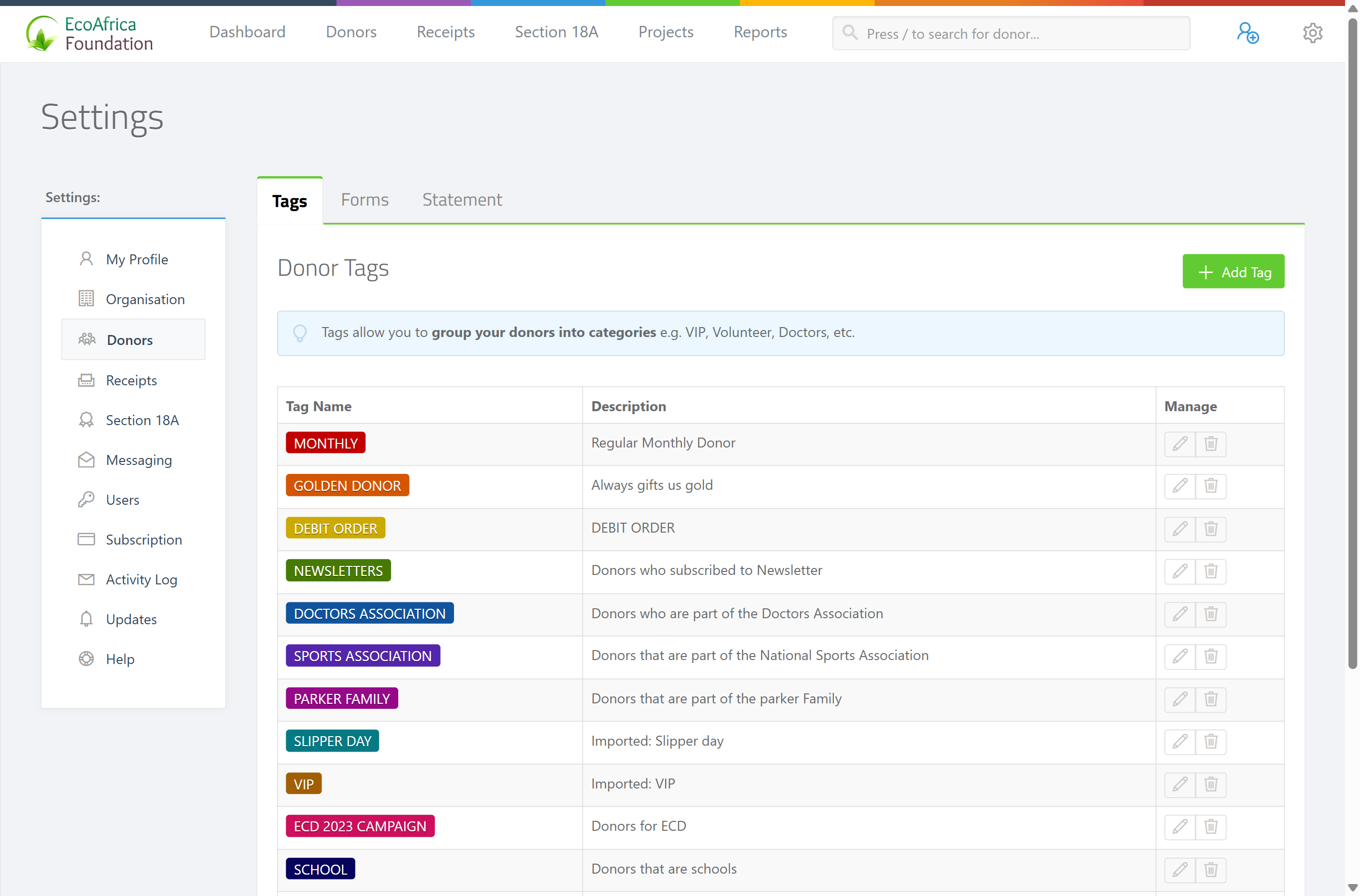
In short: Open Settings → Donors → Forms, tick Enable the public donor capture form and click Save to switch on the public self-signup form, then share the https://{your-charity}.ad.org.za/d link. You need the Manage Settings permission. The donor settings page has three tabs: Tags, Forms and Statement.
Overview
The donor settings page lets you manage donor tags, switch on a public donor capture form, control automatic merging of duplicate captures, add a privacy notice to your donor forms, and set statement options. This article focuses on the Forms tab, where you enable and share the public capture form that lets new donors submit their own details without logging in.
Before you start
You'll need:
- The Manage Settings permission.
- A decision on whether to let people add themselves as donors from a public link.
Opening donor settings
Open Settings from the gear/cog menu in the top navigation bar, then choose Donors in the Settings left-hand navigation. The page has three tabs: Tags, Forms and Statement.
Enabling the donor capture form
Step 1: Open the Forms tab
Click the Forms tab. It shows the heading Donor Forms.
Step 2: Switch the form on or off
Tick Enable the public donor capture form to switch the public form on, or untick it to switch it off.
Step 3: Save
Click Save. When enabled, the page shows the public link in the format https://{your-charity}.ad.org.za/d, with the hint "Share this link with new donors to collect their details."
Step 4: Share the link
Use the Copy button to copy the link, or Open to view the form in a new tab. Share this link with new donors so they can submit their own information.
Merging duplicate captures automatically
Once the capture form is enabled, a second option appears: Merge duplicate captures ("Match new captures to existing donors by email or phone number."). When ticked, a new submission from the public form is automatically merged with an existing donor if it matches on email or phone number, instead of creating a duplicate. It is switched on by default. Untick it and click Save to switch it off.
📌 Note: Matching is on email or phone only. A slightly different email or phone won't match, so it will still create a separate donor.
Adding a privacy notice to your donor forms
On the same tab you can add a short privacy statement that donors see before they fill in their details.
- Privacy notice / Form Description: plain text of up to 500 characters, "Shown above the donor forms." For example: "We collect this information to maintain your donor records and issue SARS-compliant Section 18A certificates." Leave it blank to remove the notice. Formatting pasted from Word or a web page is stripped, so only plain text is saved.
- Privacy policy link: optional. Enter a full web address starting with
https://orhttp://. When set, a Privacy Policy link is added after the notice.
The notice appears at the top of the public capture form and of the personal update form you send with Request Info. The same privacy settings are also used on your Donate page.
💡 Tip: A short notice explaining why you collect donor details helps you meet POPIA expectations and reassures donors.
Choosing who gets donor portal requests
The My donations requests go to dropdown picks the user who is assigned the reminder when a donor asks for a Section 18A certificate from the My donations donor portal. Leave it on First active user to use the default, or pick a specific team member. The donor portal itself is covered in the Fundraising section.
The Tags and Statement tabs
- The Tags tab manages donor tags (categories such as VIP or Volunteer) — see Donor tags and categories.
- The Statement tab manages settings for the statement of donations — covered in the Section 18A material.
What this does not do
- Enabling the form doesn't verify or auto-approve who submits. Submissions still come into ActiveDonor for you to review — see Reviewing and merging donor-submitted updates.
- The merge option doesn't de-duplicate your existing donors; it only affects new captures from the public form. To merge existing duplicates, see Merging duplicate donors.
- The privacy notice doesn't accept formatting or links inside the text. Use the Privacy policy link: field for the link.
Field reference
| Setting | Tab | What it does |
|---|---|---|
| Enable the public donor capture form | Forms | Switches the public /d capture form on or off. |
| Merge duplicate captures | Forms | Auto-merges new captures with existing donors matching on email or phone (only shown when the form is enabled). On by default. |
| Privacy notice / Form Description | Forms | Optional plain text, up to 500 characters, shown above the donor forms. Blank removes it. |
| Privacy policy link: | Forms | Optional https:// or http:// address, up to 255 characters. Adds a Privacy Policy link to the notice. |
| My donations requests go to | Forms | The user assigned reminders for Section 18A requests from the donor portal. Defaults to First active user. |
| Add Tag | Tags | Creates a new donor tag (see Donor tags and categories). |
Common issues & solutions
| What you see | What it means | How to fix it |
|---|---|---|
| The capture link doesn't work | The capture form is disabled. | Tick Enable the public donor capture form and click Save. |
| You don't see Merge duplicate captures | It only appears once the capture form is enabled. | Enable the form and save first; the option then shows. |
| Duplicate donors still created from the public form | Matching is by email or phone, so a different email/phone won't match. | Switch on Merge duplicate captures; merge remaining duplicates manually. |
| The privacy policy link won't save | The address isn't a full web address. | Enter the full link, starting with https:// (or http://). |
| Bold or other formatting disappeared from the privacy notice | The notice is plain text only. | Formatting is stripped on save. Write the notice as plain text. |
| A donor sees "Error processing your request: verification-failed. Please try again later." on the capture form | The form's automatic spam check couldn't verify the submission. | Ask the donor to reload the page and submit again, ideally in an up-to-date browser. |
| You can't open the Forms tab settings | You lack the Manage Settings permission. | Ask an administrator to grant it. |
FAQ
How do I let donors add themselves?
Open Settings → Donors → Forms, tick Enable the public donor capture form, save, and share the https://{your-charity}.ad.org.za/d link with them.
Where's the public form link? On the Forms tab, once the form is enabled — copy it with Copy or open it with Open.
How do I stop duplicates from the capture form? Tick Merge duplicate captures (it's on by default). It auto-merges new submissions that match an existing donor on email or phone number.
How do I add a privacy notice to my donor form? On Settings → Donors → Forms, type your notice in Privacy notice / Form Description (plain text, up to 500 characters), optionally add a Privacy policy link:, and click Save.
What do the Tags and Statement tabs do? Tags manages donor categories (see Donor tags and categories); Statement sets statement-of-donations options.