Organisation settings
In short: Open the gear (cog) menu at the top-right of any page and choose Settings — the page opens on the Organisation tab. Edit your charity's name, logo, registration numbers and contact details, then click Save Settings. These details print on your receipts and Section 18A certificates. You need the Manage Settings permission.
Overview
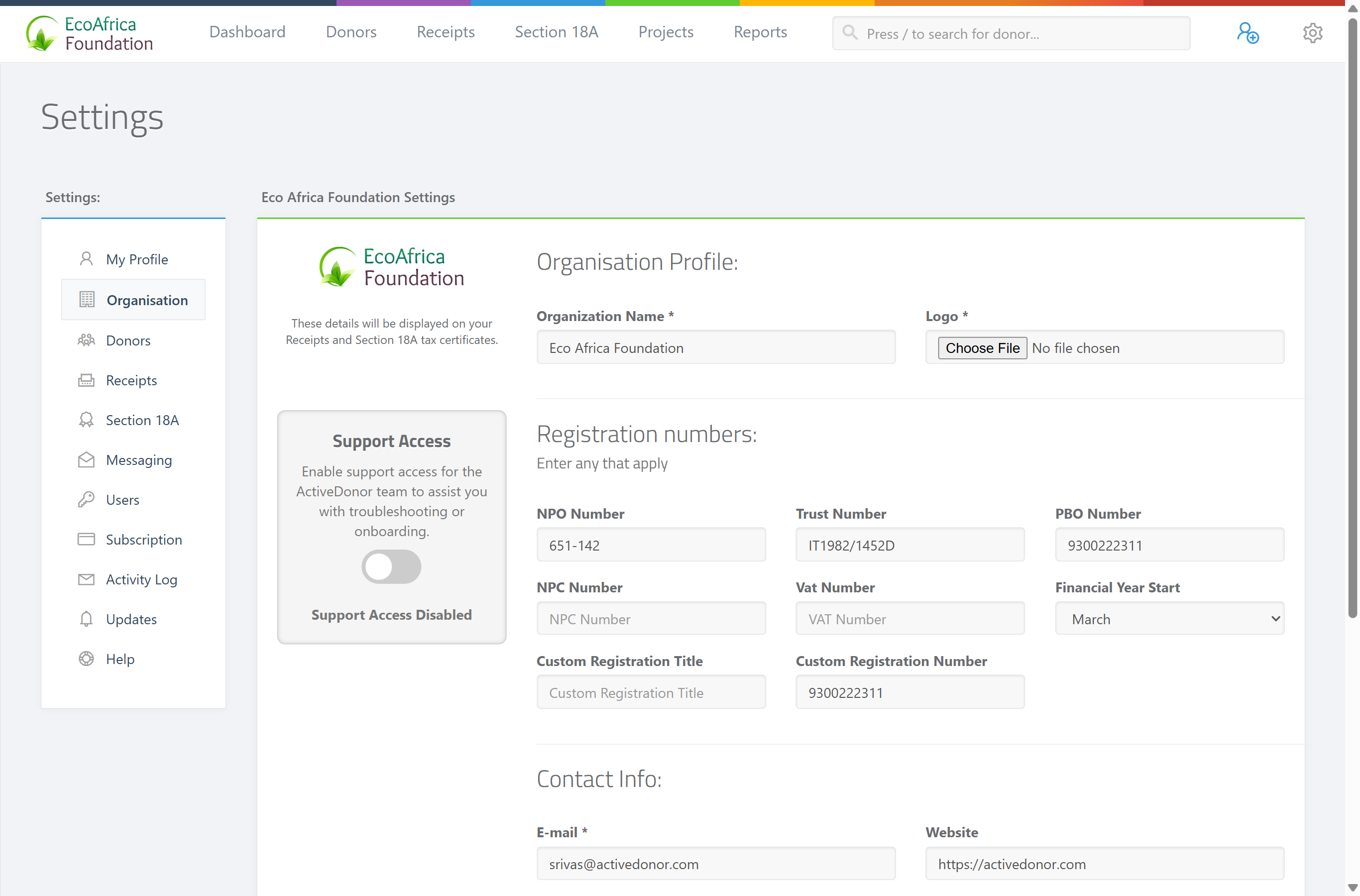
Organisation settings are your charity's master profile in ActiveDonor: name, logo, registration numbers (NPO, PBO, Trust, NPC, VAT), financial-year start, contact details and social-media links. ActiveDonor uses these on your donation receipts and your Section 18A tax certificates, so keeping them accurate matters. A note on the page reminds you: "These details will be displayed on your Receipts and Section 18A tax certificates."
The same page also carries the Support Access toggle on the left — see Granting ActiveDonor support access to your account (a single switch that lets the ActiveDonor team sign in to help, auto-expiring after 7 days).
Before you start
You'll need:
- The Manage Settings permission. Without it, the Organisation item does not appear in the Settings left-hand menu.
- Your charity logo ready as a JPEG, JPG, PNG or GIF image no larger than 1000 KB (about 1 MB).
📌 Note about the logo: If no logo has ever been uploaded, the Logo file picker is marked required in the browser, so the form won't submit until you choose an image. Once a logo is on file, you can save changes without re-uploading it — the existing logo is kept. (The server itself doesn't force a logo; the requirement is the browser's "first time" prompt.) If you genuinely don't have a logo yet, upload any placeholder image to get past the first save, then replace it later.
Where to find it
Step 1: Open Settings
In the top navigation bar, open the gear / cog dropdown (the cog icon, far top-right) and select Settings. Alternatively, go to your charity web address followed by /settings.
Step 2: Land on the Organisation tab
The page opens on the Organisation tab. The left-hand Settings menu lists: My Profile, Organisation, Donors, Receipts, Section 18A, Messaging, Users, Subscription, Activity Log, Updates and Help. (Which items show depends on your permissions — for example Users needs Manage Users and Subscription needs Manage Billing.)
Filling in the form
Step 3: Organisation Profile
- Organization Name (required) — your charity's name as it should appear on receipts and certificates. Maximum 255 characters.
- Logo — image file (JPEG, JPG, PNG or GIF), maximum 1000 KB. Uploading a new logo replaces the previous one. When a logo is on file, it previews above the form on the left.
Step 4: Registration numbers — enter any that apply
The heading reads "Registration numbers: Enter any that apply" — complete only the ones your organisation actually holds. All are optional.
- NPO Number — Nonprofit Organisation registration number. Up to 50 characters.
- Trust Number — Trust registration number. Up to 50 characters.
- PBO Number — Public Benefit Organisation number issued by SARS. Up to 50 characters. (This is the number that validates your Section 18A certificates — see Issuing a single Section 18A certificate, where a missing PBO number marks a certificate INVALID.)
- NPC Number — Non-Profit Company registration number. If entered, it must be in the South African company-registration format
CCYY/NNNNNN/NN, whereCCYYis a year from 1800 up to the current year and the last two digits are one of 06, 07, 08, 09, 10, 11, 20, 21, 22, 23, 24, 25, 26, 30 or 31. An invalid year or invalid last two digits is rejected. - Vat Number — VAT registration number. No fixed format.
- Custom Registration Title / Custom Registration Number — an optional free-text label and value for any other registration type not covered above (for example a sector- or province-specific registration).
Step 5: Financial Year Start
Choose the month your financial year begins from the Financial Year Start dropdown (January through December). It is stored as a two-digit month and drives year-based reporting and certificate periods. The system default is March.
Step 6: Contact Info
- E-mail (required) — your organisation's main email address; must be a valid email.
- Website — optional; enter the full address (the field hints "http://").
- Phone (required) — main telephone number, 7 to 20 digits (no letters).
- Phone 2 — optional secondary number.
- Physical Address (required) — your street address, in a multi-line box; appears on receipts and certificates.
- P.O.Box / Postal Address (required) — your postal address, in a multi-line box.
Step 7: Social Media Links (optional)
Expand the Social Media Links panel to add your Facebook, Instagram, YouTube, Twitter (X), WhatsApp and TikTok links. The web links must be valid URLs; the WhatsApp number must start with 0 and be 9–15 more digits (the error reads "Please enter a valid WhatsApp number").
Step 8: Save
Click Save Settings at the bottom right. A green "Settings successfully saved" message confirms the save, and the change is written to the Activity Log as "Organisation settings were updated" (see Activity log).
💡 Tip: Want your details centred on the receipt or certificate layout? That's controlled separately — see Receipt layout settings and Certificate settings, not this page.
What this does not do
- It does not control where your details appear or how they're aligned on documents — that's Receipt layout settings and Certificate settings.
- It does not change your own login name or password — that's My Profile (see Editing your profile (My Account)).
- Saving a PBO number here does not validate it with SARS; it only stores it for use on certificates.
Field reference
| Field | Required? | What to enter |
|---|---|---|
| Organization Name | Yes | Charity name (max 255 characters) |
| Logo | First save only (browser) | JPEG/JPG/PNG/GIF image, max 1000 KB |
| NPO Number | No | NPO registration number (max 50 chars) |
| Trust Number | No | Trust registration number (max 50 chars) |
| PBO Number | No | SARS PBO number (max 50 chars) |
| NPC Number | No | Company reg in format CCYY/NNNNNN/NN |
| Vat Number | No | VAT number |
| Financial Year Start | No | Month dropdown (January–December); default March |
| Custom Registration Title | No | Label for any other registration |
| Custom Registration Number | No | Value for the custom registration |
| Yes | Valid email address | |
| Website | No | Full web address |
| Phone | Yes | 7–20 digits |
| Phone 2 | No | Secondary phone number |
| Physical Address | Yes | Street address |
| P.O.Box / Postal Address | Yes | Postal address |
| Facebook / Instagram / YouTube / Twitter (X) / TikTok | No | Full URL (valid web link) |
| No | Number starting with 0, total 10–16 digits |
Common issues & solutions
| What you see | What it means | How to fix it |
|---|---|---|
| "Failed to save settings" | A required field is empty or a value failed validation. | Check Organization Name, E-mail, Phone, Physical Address and P.O.Box / Postal Address are all filled and valid, then save again. |
| "Invalid NPC Number (Year): Format should be CCYY/NNNNNN/NN." | The year part of the NPC number is before 1800 or in the future. | Enter a valid South African company-registration number in the CCYY/NNNNNN/NN format. |
| "Invalid NPC Number: The last two digits are invalid. Format should be CCYY/NNNNNN/NN." | The final two digits aren't one of the allowed values. | Use a number whose last two digits are one of 06, 07, 08, 09, 10, 11, 20, 21, 22, 23, 24, 25, 26, 30 or 31. |
| "Please enter a valid WhatsApp number" | The WhatsApp number doesn't start with 0 or is the wrong length. | Enter a number starting with 0 followed by 9–15 digits, no spaces or symbols. |
| The form won't submit and highlights the Logo field | No logo has ever been uploaded, so the browser marks Logo required on the first save. | Choose any JPEG/JPG/PNG/GIF image (max 1000 KB). You can replace it afterwards. |
| The logo upload is rejected | The file isn't a JPEG/JPG/PNG/GIF, or it's larger than 1000 KB. | Resize or re-export a smaller image in a supported format. |
| Phone is rejected | The phone isn't 7–20 digits, or contains letters. | Enter 7 to 20 digits only. |
FAQ
Where is the settings icon? It's the gear / cog icon at the top-right of the page. Click it and choose Settings — the Organisation page opens first.
How do I add my logo? On the Organisation tab, use the Logo file picker, choose a JPEG/JPG/PNG/GIF image up to 1000 KB, then click Save Settings — uploading a new image replaces the old one. See How do I add or change my organisation logo? for the steps.
My logo won't save — what's wrong? The file must be a JPEG, JPG, PNG or GIF and no larger than 1000 KB. If it's bigger, resize or re-export it smaller and try again.
I don't have a logo yet — can I still save? The first time you save, the browser asks for a logo. Upload any placeholder image to get past it, then swap it for your real logo later. After a logo is on file, you can save other changes without touching it.
Is a logo compulsory? Only for the very first save, and only in the browser. The server doesn't reject a save for a missing logo — but the file picker is marked required until a logo exists, so you'll be prompted on the first save.
Where does my PBO / registration number come from on certificates? From the PBO Number field here. If it's blank, Section 18A certificates are marked INVALID — see Issuing a single Section 18A certificate.
How do I centre my organisation details on the receipt or certificate? Not on this page. Layout and alignment live in Receipt layout settings and Certificate settings.
Why does the Settings menu not show the Organisation item for me? You need the Manage Settings permission. Ask a user manager to grant it — see Roles and permissions.
Related
- How do I add or change my organisation logo?
- Granting ActiveDonor support access to your account
- Receipt layout settings
- Certificate settings
- Editing your profile (My Account)
- Activity log
- Issuing a single Section 18A certificate
Need a hand?
If a save keeps failing and the fixes above don't help, contact ActiveDonor support and tell us which field you were editing and the exact message you saw.