Granting ActiveDonor support access to your account
In short: Open Settings (gear menu, top-right) — the Organisation page opens — and flip the Support Access toggle in the box on the left. Turning it on lets the ActiveDonor support team sign in to your workspace and auto-expires after 7 days; turning it off revokes access immediately. The toggle saves on its own — you don't click Save Settings. You need the Manage Settings permission.
Overview
Support access lets the ActiveDonor support team sign in to your workspace to help with troubleshooting or onboarding — for example to load or check your company details with you. It's off by default, you control it with a single toggle, and when you turn it on it automatically expires after 7 days.
Before you start
You'll need:
- The Manage Settings permission.
- To know where the toggle lives: the Organisation settings page, in the Support Access box on the left.
Enabling support access
Step 1: Open the Organisation page
In the top navigation bar, open the gear / cog dropdown and select Settings. The page opens on the Organisation tab.
Step 2: Find the Support Access box
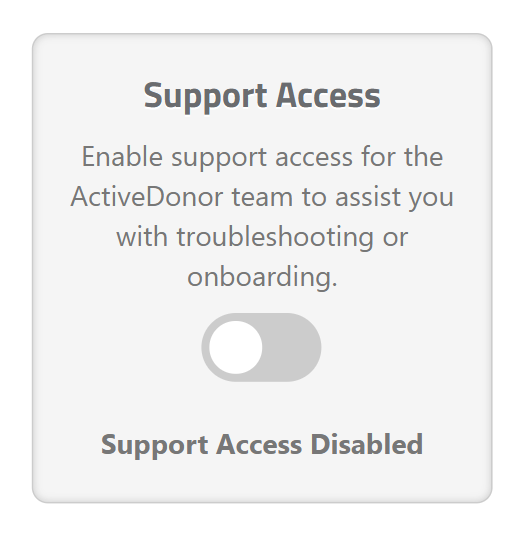
On the left, find the Support Access box. It explains: "Enable support access for the ActiveDonor team to assist you with troubleshooting or onboarding."
Step 3: Flip the toggle on
Click the toggle switch (its tooltip reads "Click to enable or disable support access."). A brief spinner shows while the change saves. The status updates to a green Support Access Enabled with a note that it "expires in 7 days".
You do not need to click Save Settings — the toggle saves on its own immediately.
Disabling support access
Step 1: Flip the toggle off
On the Organisation settings page, click the same Support Access toggle so it's switched off.
Step 2: Confirm it's disabled
The status updates to Support Access Disabled. Access ends immediately.
How long access lasts
- Turning the toggle on grants the ActiveDonor team access for 7 days, after which it expires automatically — you don't have to remember to switch it off. 🟢
- Turning it off revokes access straight away. 🔴
- The current state and remaining time show beneath the toggle (for example "expires in 7 days").
What gets recorded
Every change is written to the Activity Log (see Activity log):
- "Support access was enabled until {date and time}" when you turn it on; or
- "Support access was disabled" when you turn it off.
The support status is also shared with the ActiveDonor admin dashboard so the team can see which workspaces currently have access enabled.
What this does not do
- It does not give the support team standing access — it always expires after 7 days unless you turn it off sooner.
- It does not change your own login, password or any donor data.
- It does not need a Save Settings click — the toggle saves itself.
Common issues & solutions
| What you see | What it means | How to fix it |
|---|---|---|
| "An error occurred while updating support access. Please try again." | The toggle change didn't save (often a temporary connection issue). The toggle reverts to its previous position. | Try flipping the toggle again. |
| You can't find the Support Access box | It's on the Organisation settings page (gear menu → Settings), and you need the Manage Settings permission. | Open Settings → Organisation; if it's still missing, ask for the Manage Settings permission — see Roles and permissions. |
| You'd rather not leave access on | Support access auto-expires after 7 days. | Switch it on while the team is helping, then switch it off when done — or just let it expire. |
FAQ
How do I let ActiveDonor support load my company details? Open Settings → Organisation, find the Support Access box on the left, and flip the toggle on. The support team can then sign in to help. It auto-expires after 7 days.
How do I grant support access? Settings (gear menu) → Organisation → flip the Support Access toggle on. No Save click is needed — it saves itself.
Do I have to remember to turn it off? No. Support access automatically expires after 7 days. You can also turn it off manually at any time, which revokes access immediately.
Where's the toggle? In the Support Access box on the left of the Organisation settings page.
Is support access logged? Yes — every enable/disable is written to the Activity Log with the time (see Activity log).
Related
- Organisation settings
- Activity log
- Getting help and training
- Latest updates and changelog
- Roles and permissions
Need a hand?
If the toggle keeps showing "An error occurred while updating support access. Please try again.", contact ActiveDonor support — it's usually a brief connection issue.