Searching for donors
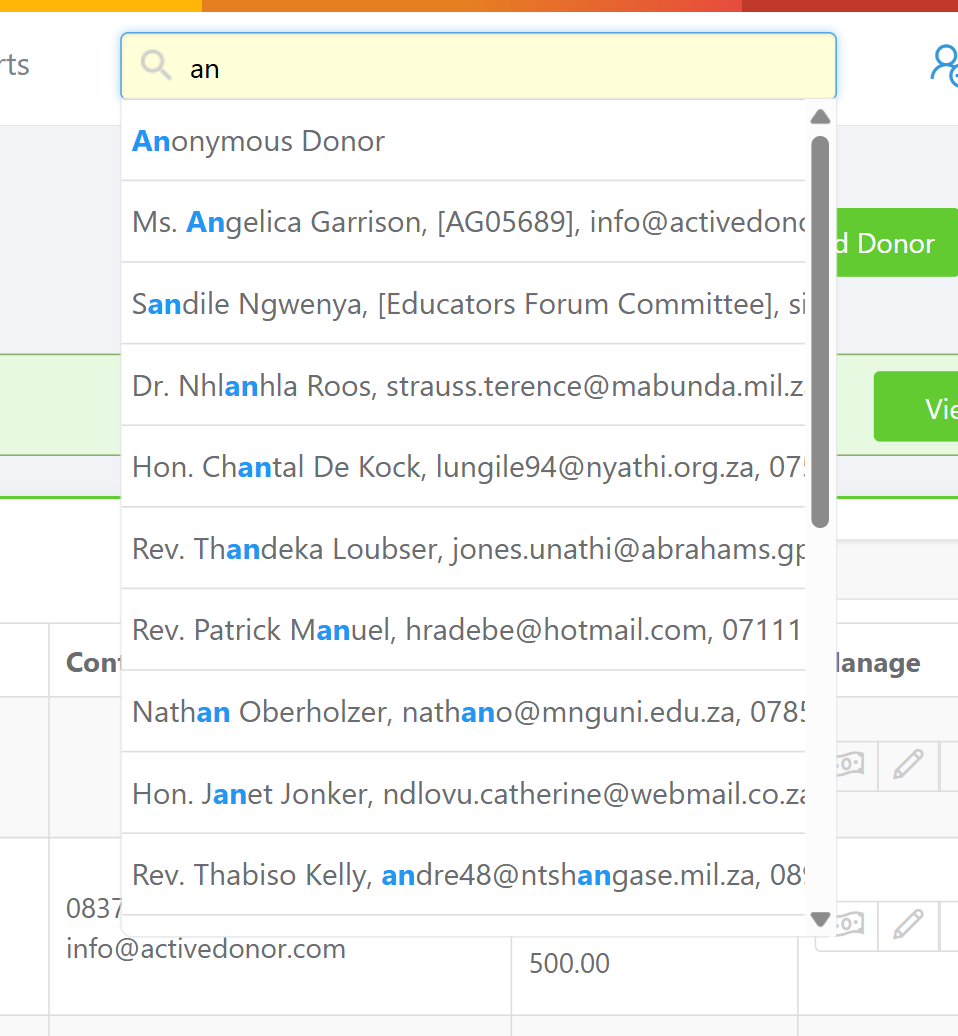
In short: Click the search box in the top navigation bar (or press the / key), then start typing a name, organisation, reference, ID, phone number or email. Results appear as you type — click one to open that donor.
Overview
ActiveDonor has a quick donor search in the top navigation bar that finds a donor by almost any detail you remember — their name, organisation name, your internal reference, an ID or registration number, a trading name, a contact person, a phone number or an email address. It is the fastest way to jump to a donor's profile from anywhere in the app.
📌 Note: This search is for finding donors that already exist in ActiveDonor. If a person filled in your donor capture form and you can't find them yet, they are waiting in the Donor Submissions review list, not in this search — see Reviewing and merging donor-submitted updates (new form submissions are held for review before they become donors).
Before you start
You'll need:
- Access to donors (the Manage Donors permission) to open a donor's profile from the results.
The search box sits in the top navigation bar and shows the prompt "Press / to search for donor...".
Searching for a donor
Step 1: Open the search box
Click the search box in the top navigation bar, or press the / key on your keyboard from anywhere to jump straight to it.
Step 2: Start typing
Type any detail you remember — part of a name, the organisation name, the reference, a phone number or an email. Results appear as you type.
Step 3: Open the donor
Click a result to open that donor's profile.
💡 Tip: When the box is empty it shows your recently viewed donors, so you can jump back to a donor you looked at recently without typing anything.
What the search looks through
The donor search matches against many fields at once, so you can find a donor by almost any detail:
- The donor's first name, last name, or organisation entity name.
- The donor's reference (your internal donor number).
- An ID or registration number.
- A trading name.
- A contact person's name on the donor.
- Any of the donor's phone numbers.
- Any of the donor's email addresses.
💡 Tip: If a name is spelled an unusual way and you can't find the donor, try searching by phone number or email instead — those are matched too.
What this does not do
- It does not search receipts, certificates or notes — only donor records.
- It does not show donor capture form submissions. Brand-new people who filled in your public form are not donors yet; they wait in the submissions review list until you save them. See Reviewing and merging donor-submitted updates (submissions are held for review before they create a donor).
- It does not find merged-away donors. If a duplicate was merged into another donor, only the surviving donor remains — see Merging duplicate donors.
Common issues & solutions
| What you see | What it means | How to fix it |
|---|---|---|
| My donor does not appear in the results | The spelling may differ, or you're searching a field that isn't matching. | Search by a different detail — phone number, email, or reference. The donor may also have been merged into another donor (see Merging duplicate donors). |
| I added donors from the form link but can't find them | New capture-form submissions are not donors yet; they're held for review. | Open the donor updates review list and save them — see Reviewing and merging donor-submitted updates. |
| Nothing happens when I press / | Your focus was inside another text field. | Click into an empty part of the page first, then press / to focus the donor search box. |
FAQ
How do I find a donor quickly? Press / anywhere, or click the search box in the top bar, then type part of their name, reference, phone or email.
I added donors from the link but can't find them — where are they? People who fill in your public donor capture form are held as submissions for you to review; they don't appear in donor search until you save them. See Reviewing and merging donor-submitted updates.
Can I search by phone number or email? Yes. The search matches phone numbers and email addresses as well as names, so either will find the donor.
Can I search by my own reference number? Yes. If you stored an internal donor number in the Reference field, you can search by that number.
Why does my donor not show up? Check the spelling, or search by a different detail. The donor may also have been merged into another record — see Merging duplicate donors.