Editing a donor's details
In short: Open the donor's profile, click the Manage button (the cog at the top-right of the donor's name), choose Edit Donor, change what you need, and click Update Donor. You need the Manage Donors permission. The built-in Anonymous donor and any donor marked as deceased cannot be edited.
Overview
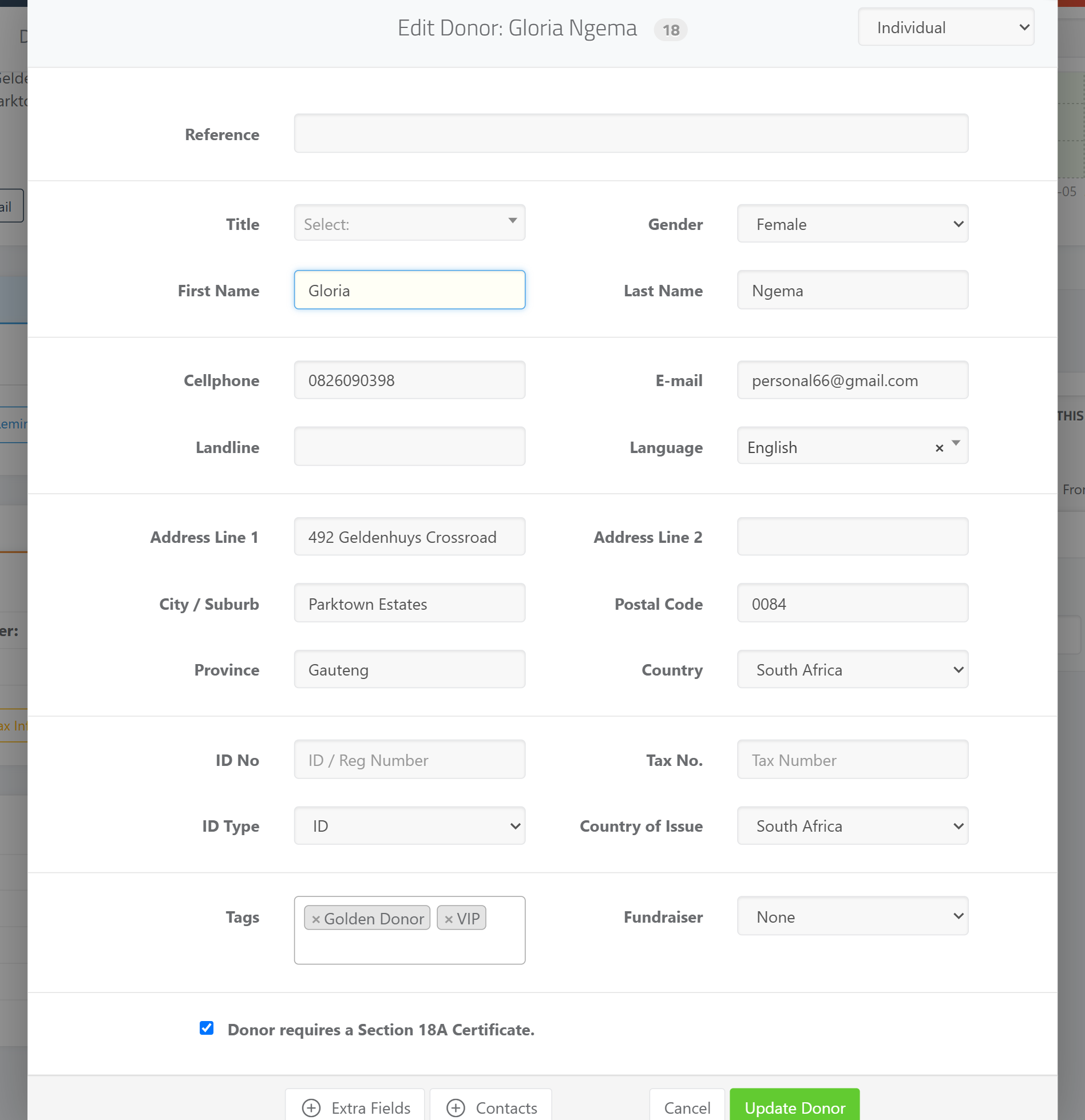
You can update a donor's name, type, contact details, tax information, tags and other fields at any time from the donor's profile. The edit form is the same one used when adding a donor, with sections for Personal Details (or Organization Details), Donor Information, Postal Address and Tax Information.
Before you start
You'll need:
- The Manage Donors permission.
- A donor that isn't the built-in Anonymous donor and hasn't been marked as deceased — both are locked from editing.
⚠️ Important: If you try to edit the Anonymous donor you'll see "Cannot edit anonymous donor.", and a deceased donor shows "Cannot edit deceased donor." — the form won't open in either case.
Editing the donor
Step 1: Open the donor's profile
Find the donor using the search box in the top navigation bar (it prompts "Press / to search for donor...") and open their profile.
Step 2: Open the Edit Donor form
Click the Manage button (the gear/cog button at the top-right of the donor's name), then click Edit Donor. The Edit Donor window opens with the donor's current details.
Step 3: Change the fields you need
Adjust any fields. The same validation applies as when adding a donor: the type-appropriate name fields are required, a Cellphone or E-mail is required (unless Phone & Email is unavailable is ticked), and a Country is required.
Step 4: Save
Click Update Donor to save your changes.
What you can change
- The donor's Donor Type (Individual, Company, Company (Public), CC, NPC, Trust, Association or Estate). Changing between a person type and an entity type swaps the name fields between First/Last Name and Entity Name — see Donor types explained.
- Name fields, Reference, Title, Gender, Language and Fundraiser.
- The Donor requires a Section 18A Certificate. checkbox.
- Tax and ID information in the Tax Information section.
Editing contact details separately
Phone numbers, email addresses and postal addresses each have their own small edit windows on the donor's profile — click the pencil icon next to each item in the Contact Information panel. You do not have to open the full Edit Donor form just to fix a phone number or email. See Adding phone numbers, emails and addresses (covers labels, defaults and updating certificates).
What this does not do
- Editing the donor does not retro-fit existing Section 18A certificates. Issued certificates keep the details they were issued with. To refresh them with the donor's latest info, use the Update All Certificates with latest info button on the donor's Section 18A tab, or tick the "Update all Section 18A" option in the relevant edit window.
- It does not delete the donor. Marking a donor deceased is a separate action — see Marking a donor as deceased.
Common issues & solutions
| What you see | What it means | How to fix it |
|---|---|---|
| "Cannot edit anonymous donor." | The built-in Anonymous donor (used to record anonymous donations) can't be edited. | This is by design; the Anonymous donor only exists to hold anonymous donations. |
| "Cannot edit deceased donor." | The donor has been marked as deceased and is locked. | If this was a mistake, an administrator may need to reactivate the donor. See Marking a donor as deceased. |
| Your change didn't appear on an existing certificate | Certificates keep the details they were issued with. | Use Update All Certificates with latest info on the donor's Section 18A tab, or tick the update option when editing. |
| "Cellphone OR Email is required." | You cleared both contact fields without ticking Phone & Email is unavailable. | Re-add a cellphone or email, or tick Phone & Email is unavailable. |
FAQ
Where is the edit button? On the donor's profile, click Manage (the cog beside the donor's name), then Edit Donor.
Why can't I edit this donor? It's either the built-in Anonymous donor or a donor that's been marked as deceased — both are locked from editing.
I changed the donor's address but the certificate still shows the old one. Certificates keep their issued details. Use Update All Certificates with latest info on the Section 18A tab to refresh them.
The save button says "Update Donor", not "Create Donor" — is that right? Yes. The button reads Update Donor when editing an existing donor (and Create Donor when adding a new one).