Saving and reusing list filters
In short: Set the options in the Filters: panel on the left of the Donors list and click Apply Filters. ActiveDonor saves those choices against your session and keeps the list filtered the same way each time you return — there is no separate "save" button and no named filter to manage.
Overview
When you narrow the Donors list using the Filters panel, ActiveDonor remembers your selections so the list stays filtered the same way the next time you open it — you don't have to set the filters again each visit. A "saved filter" here is a remembered set of list-filter choices stored against your session, not a named, shareable filter you manage separately.
Before you start
You'll need:
- To be signed in.
- The Donors list — the Donors item in the top navigation bar. This is the list that uses the shared "save filter" mechanism described here.
📌 Note: The Receipts and Section 18A (certificates) lists have their own separate filter panels with their own Reset links. They work similarly but are documented with those lists — see Searching and filtering receipts.
How saved filters work
The donor Filters panel sits in the left-hand sidebar of the Donors page. When you choose filter options and click Apply Filters, ActiveDonor:
- Saves your current filter choices against your session.
- Reloads the donor list so it shows only the matching donors.
- Keeps those choices the next time you return to the Donors page — the Filters panel re-opens with your selections still in place.
Because the choices are remembered against your session, they persist as you move around the app and come back to the list. They stay until you change them or clear them.
Applying and saving a donor filter
Step 1: Open the Donors list
Click Donors in the top navigation bar.
Step 2: Open the Filters panel
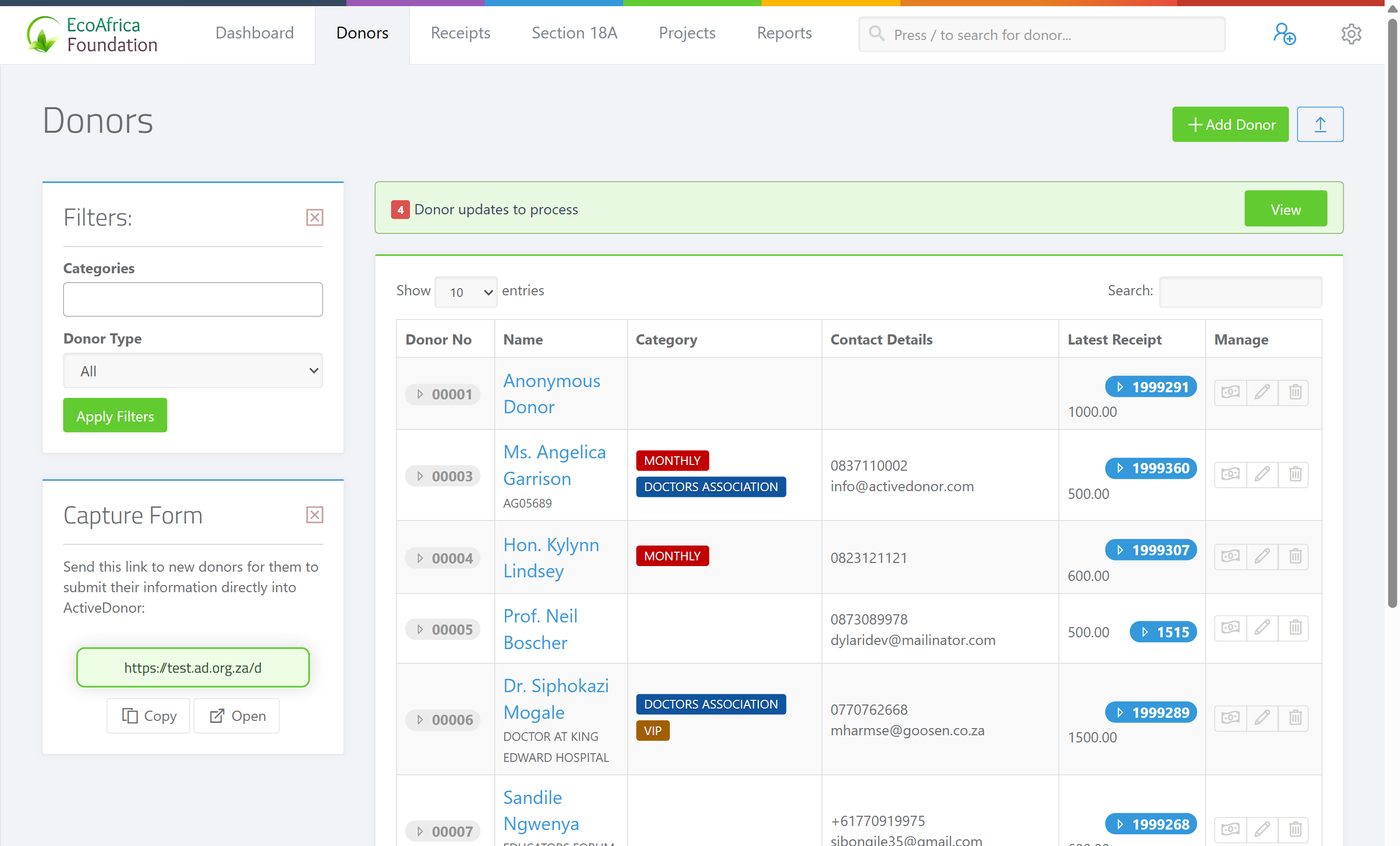
In the left sidebar, find the panel headed Filters:.
Step 3: Set your filter options
- Categories — choose one or more donor categories/tags to show only donors with those tags.
- Donor Type — choose a donor type to show only that type. Options are: All, Individual, Company, Company (Public), CC, NPC, Trust, Association, Estate, and Entity (legacy).
Step 4: Apply (and save)
Click the green Apply Filters button. The donor list reloads showing only matching donors, and your selections are saved. They will still be applied (and shown in the Filters panel) the next time you open the Donors page.
Changing or clearing a filter
There is no separate "Clear" button on the donor Filters panel. To change what is shown:
- To change the filter: pick different Categories or a different Donor Type and click Apply Filters again. The new choices replace the saved ones.
- To show all donors again: set Categories to none (deselect all categories) and set Donor Type to All, then click Apply Filters. This effectively clears the filter so the full list is shown, and saves that "show everything" state.
What this does not do
- It does not create a named filter you can pick from a list later — there is one remembered set, not a library of saved filters.
- It does not share your filter with other users — the choices are tied to your own session.
- It does not persist forever — signing out or your session expiring can clear it (see the FAQ).
- It does not cover the Receipts or Section 18A lists, which keep their own separate filter panels and Reset links.
Field reference
| Filter | What it does | Options |
|---|---|---|
| Categories | Restricts the list to donors with the selected category/tag(s). Multiple may be selected. | Your charity's donor categories (tags). |
| Donor Type | Restricts the list to a single donor type. | All, Individual, Company, Company (Public), CC, NPC, Trust, Association, Estate, Entity (legacy) |
Common issues & solutions
| What you see | What it means | How to fix it |
|---|---|---|
| The list still looks filtered when you expected to see everyone. | Your previous filter choices were remembered against your session. | Open the Filters: panel (it shows what is currently applied), set Donor Type to All, deselect all Categories, then click Apply Filters. |
| Your filter "reset" itself between visits. | Saved filters are tied to your session; signing out or a session timeout clears them. | Re-open the Filters: panel and set your options again, then click Apply Filters. |
FAQ
How do I save a filter so the Donors list stays filtered? Set the options in the Filters: panel and click Apply Filters — that automatically saves your choices for next time. There is no separate save step.
How do I reuse a saved filter? Just return to the Donors page. Your last applied choices are still in place in the Filters: panel and the list is already filtered. To re-run them after changing something, click Apply Filters again.
How do I clear the saved filter and see all donors? Set Donor Type to All, deselect all Categories, then click Apply Filters. There is no dedicated Clear button on the donor filter.
Can I save more than one named filter? No. ActiveDonor remembers a single set of choices against your session, not a library of named filters.
Why did my filter disappear after I logged back in? Saved filters are tied to your session, so signing out or a session timeout can clear them. Set the filters again and click Apply Filters.
Does the saved filter apply to the Receipts or certificates lists too? No. Those lists have their own separate filter panels and Reset links — see Searching and filtering receipts.
Related
- Searching for donors
- Donor tags and categories
- Donor types explained
- Searching and filtering receipts
Need a hand?
If your Donors list seems stuck on a filter you can't clear, open the Filters: panel, set Donor Type to All, deselect all Categories and click Apply Filters. If it still looks wrong, contact ActiveDonor support.