Requesting updated information from a donor
In short: Open the donor, click Manage then Request Info, and send the personal link by Copy, Open, WhatsApp or E-mail. The donor fills in a form; their submission then waits for you to review and save it. The link is valid for 7 days.
Overview
You can ask an existing donor to check and update their own details by sending them a secure personal link. The donor opens the link, fills in a form pre-filled with their current details, and submits it — no login needed. Their submission is held for you to review and save onto the donor record, so nothing changes automatically.
📌 Note: This is the donor update request link — it's for updating a donor you already have. It's different from the donor capture form link, which is a public form for brand-new donors who aren't in your system yet. To set up the public capture form, see Configuring donor settings and capture forms.
Before you start
You'll need:
- The Manage Donors permission.
The request creates a unique link for that donor in the form https://{your-charity}.ad.org.za/d/{unique-code}, valid for 7 days. After that it expires and the donor sees an expired message. A note is automatically added to the donor recording that an update request was generated.
Sending an update request
Step 1: Open the donor
Open the donor's profile.
Step 2: Open the Request Info window
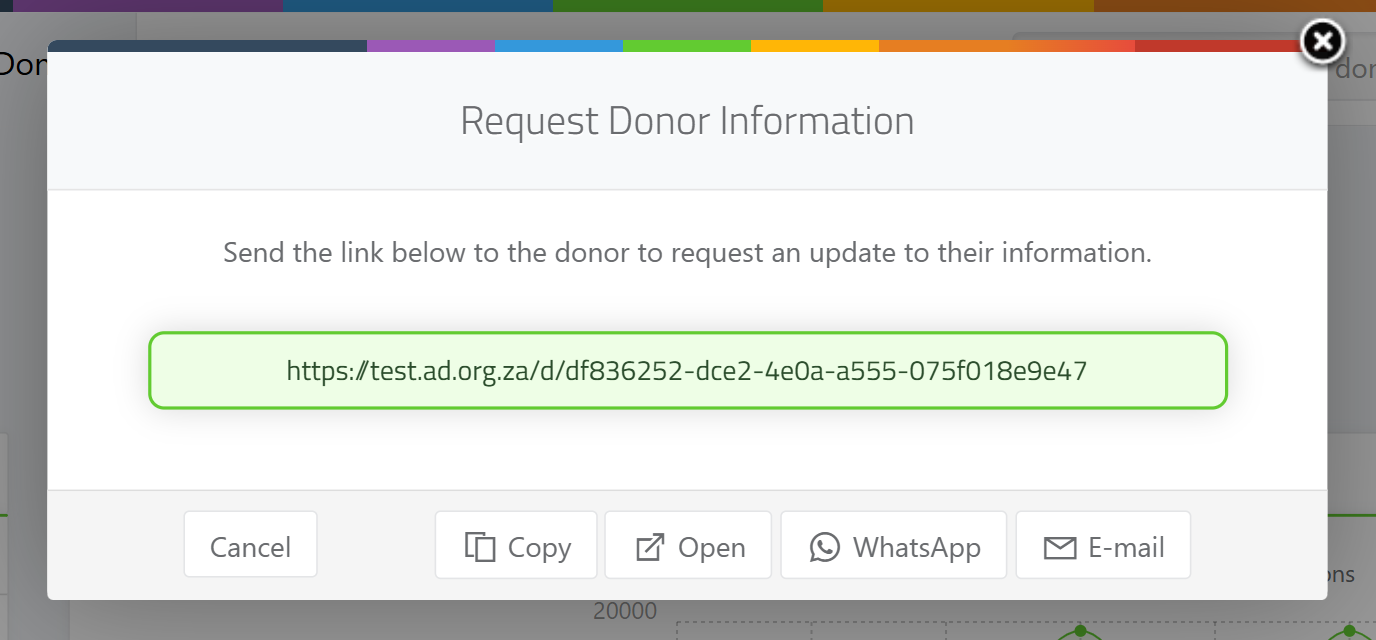
Click the Manage button (the cog at the top-right of the donor's name), then Request Info. The Request Donor Information window opens, showing the donor's personal update link.
Step 3: Choose how to send it
Pick one of:
- Copy — copies the link so you can paste it anywhere. A confirmation reads "Link copied:" followed by the link.
- Open — opens the donor's update form in a new tab so you can check it.
- WhatsApp — opens a pre-filled WhatsApp message to the donor. This button is only active when the donor has a cellphone number on file; otherwise it's disabled with the tooltip "No cellphone number found for this donor."
- E-mail — opens an email compose window pre-filled with the request message and the donor's email address.
💡 Tip: If the donor already had an open request, clicking Request Info again refreshes its expiry to 7 days from now and keeps the same link.
What the donor sees
The donor opens the link and sees a form pre-filled with their current details — name, contact details, address and tax information where these are on file. They check and correct the information and submit it. They don't need a login.
After the donor submits
When the donor submits, their response is held for your review — it does not overwrite the donor record automatically. On the donor's profile you'll see a banner reading "Donor update information received on ..." with a Save button, and the response also appears in the donor updates review list. See Reviewing and merging donor-submitted updates (where you compare the submitted details against the current record and save them onto the donor).
Requesting updates from many donors at once
You can request updated information from many donors in one go from the Donor information report, where you filter donors with missing details and email them all a personalised info request. ActiveDonor:
- Only emails donors who have an email address on file and whose address is not on the bounce or complaint suppression list.
- Skips any donor who was already emailed an info request in the last 7 days.
- Sends at roughly 450 emails per hour and gives each donor a 7-day update link.
See Donor information report (which finds donors missing an email, phone, address, post code, registration number or tax number).
What this does not do
- It does not change the donor record on its own. Submissions are always held for you to review and save.
- It is not the public capture form for new donors — see Configuring donor settings and capture forms for that.
- It does not send by WhatsApp when the donor has no cellphone on file; that button is disabled.
Common issues & solutions
| What you see | What it means | How to fix it |
|---|---|---|
| The WhatsApp button is greyed out, tooltip "No cellphone number found for this donor." | The donor has no cellphone number on file. | Add a cellphone number, or use Copy, Open or E-mail instead. |
| The donor says the link expired | Update links last 7 days. | Open Request Info again to generate a fresh 7-day link (it keeps the same address). |
| The donor's changes didn't appear on the profile | Submissions are held for review, not applied automatically. | Use the Save button on the "Donor update information received" banner, or the donor updates review list — see Reviewing and merging donor-submitted updates. |
FAQ
How do I ask a donor to update their own details? Open the donor, choose Manage then Request Info, and send the personal link by Copy, Open, WhatsApp or E-mail.
What's the difference between the update request link and the capture form link? The update request link is personal to an existing donor and pre-fills their details; the capture form link is a public form for brand-new donors — see Capture form vs "request information" link — which one do I send?.
How long does the link stay valid? 7 days. After that the donor sees an expired message; open Request Info again for a fresh 7-day link.
Why is the WhatsApp button disabled? The donor has no cellphone number on file ("No cellphone number found for this donor."). Add a cellphone, or use Copy, Open or E-mail.
Can I request updates from lots of donors at once? Yes — use the Donor information report to filter donors with missing details and email them all a personalised request.