The Reports dashboard
In short: Click Reports in the main navigation to open the dashboard at /reports. It groups every report into themed panels (Donations, Donors, Tax & Compliance, Email & Tasks) plus a sidebar of outstanding tasks and quick reports. You need the View Reports permission to see it.
Overview
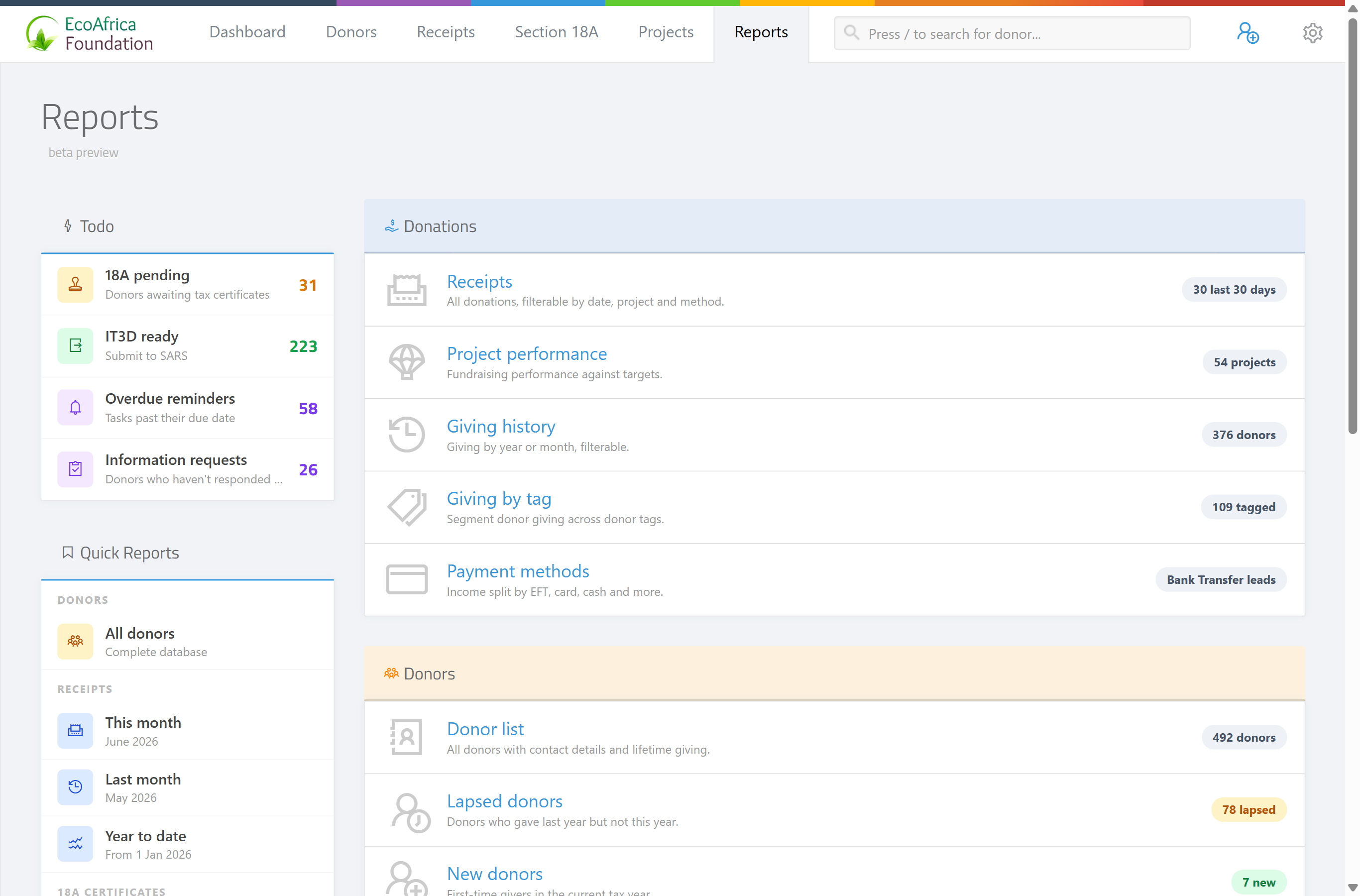
The Reports dashboard is the starting point for all of ActiveDonor's reports and insights. It pulls together the analytical reports (receipts, donors, giving by tag, top donors and so on), the batch email centre, the audit log, and shortcut "Todo" links into one screen. The heading at the top of the page reads Reports beta preview.
Before you start
You'll need:
- The View Reports permission. If you cannot see the Reports menu item, ask an administrator to grant it — see Roles and permissions (controls which reports and pages each user can open).
- Some report cards lead to features gated by your subscription plan. The Lapsed donors and Donor retention reports require the Advanced (2000 Donor) Plan and show an "Upgrade Required" message instead of data on smaller, legacy or trial plans — see Your subscription and plan.
📌 Note: The dashboard only appears once you have captured at least one receipt (see below).
What you see when there are no receipts yet
If your charity has not captured a single receipt, /reports does not show the dashboard. Instead it shows a welcome screen headed Your reports will appear here: with Add Donor and Add Receipt buttons and a short list of the reports that become available once you have data. Capture at least one receipt and the full dashboard appears automatically.
The dashboard layout
The dashboard is split into a left sidebar and a main area of report panels.
Sidebar: Todo
The Todo panel surfaces items that need attention. Each row links to the relevant report:
- 18A pending — the Section 18A certificate requests page (
/reports/certificates-requests). - IT3D ready — the IT3(d) submissions file page (
/reports/it3d). - Overdue reminders — the Reminders page (
/reminders). - Information requests — the donor update requests page (
/reports/donor-updates).
Sidebar: Quick Reports
The Quick Reports panel gives one-click shortcuts to common pre-filtered reports:
- Donors — All donors.
- Receipts — This month; Last month; Year to date.
- 18A Certificates — This month; Last month; This tax year; All certificates.
Main panel: Donations
- Receipts — the Receipts Report.
- Project performance — the Projects Report.
- Giving history — donor giving history.
- Giving by tag — the Giving by Tag report.
- Payment methods — the Income by Payment Method report.
Main panel: Donors
- Donor list — the Donors Report.
- Lapsed donors — the Lapsed Donor (LYBUNT) report.
- New donors — the New Donors report.
- Donor retention — the Donor Retention Report.
- Top donors — the Top Donors report.
Main panel: Tax & Compliance
- Issue 18A certificates — issue Section 18A certificates.
- IT3D submissions — IT3(d) submission tracking.
- Section 18A history — Section 18A issued and revoked history.
- Incomplete profiles — donors whose tax details are incomplete.
Main panel: Email & Tasks
- Bulk emails — the Email Management page (
/reports/emails) for sending batch certificates and receipts. - Information requests — donor update requests.
- Reminders — the Reminders page.
- User activity — the User Activity (audit log) page (
/reports/audit-log). This card only appears if you have the Manage Settings permission.
How the dashboard numbers are calculated
Each dashboard card shows a count or figure (for example the number of overdue reminders, donors pending an 18A certificate, lapsed donors, or this period's new donors). These figures are cached for 60 seconds for speed, so a change you make — such as capturing a receipt — may take up to a minute to appear on the dashboard. Open the underlying report for the live, up-to-the-second numbers.
💡 Tip: If a dashboard figure looks out of date, wait a moment and refresh, or open the full report behind the card for live figures.
Where to choose the financial (tax) year
The dashboard itself doesn't have a year picker — you choose the period inside each report. Most reports use either a date range picker at the top right (with named ranges such as Current tax year and Previous tax year) or a Period dropdown in the sidebar. In ActiveDonor the South African tax year runs 1 March to the end of February, so "tax year" ranges use those boundaries, not calendar-year boundaries.
Notes about report addresses
- The dashboard lives at
/reports. An older address,/reports/v2, automatically redirects here, so any saved bookmark to/reports/v2still works. - Pages under
/reports/v2/mockupare internal design mockups and are not part of the live product. You will not encounter them in normal use.
Common issues & solutions
| What you see | What it means | How to fix it |
|---|---|---|
| The Reports menu is missing. | You do not have the View Reports permission. | Ask an administrator to update your role — see Roles and permissions. |
| Upgrade Required — "This report is only available on the Advanced (2000 Donor) Plan. Please upgrade your plan to access this report." | That report (Lapsed donors or Donor retention) is not included on your current plan, or you are on a legacy or trial plan. | Upgrade your subscription — see Your subscription and plan. |
| A dashboard figure looks out of date. | Dashboard counts are cached for 60 seconds. | Wait a moment and refresh, or open the full report for live figures. |
| The dashboard doesn't appear; you see Your reports will appear here: instead. | Your charity has not captured any receipts yet. | Capture at least one receipt and the dashboard appears automatically. |
FAQ
Where do I find reports?
Click Reports in the main navigation. It opens the dashboard at /reports, which links to every report.
Why can't I see the Reports menu? You don't have the View Reports permission. Ask an administrator to add it to your role.
Why does a report say "Upgrade Required"? The Lapsed donors and Donor retention reports need the Advanced (2000 Donor) Plan. On smaller, legacy or trial plans they show "Upgrade Required" instead of data.
My dashboard numbers seem wrong or stale — why? The cards are cached for 60 seconds. Open the full report behind a card for live figures.
How do I pick the tax year for a report? There's no year picker on the dashboard itself. Open the report and use its date range picker (top right) or its Period dropdown (sidebar). The SA tax year runs 1 March to the end of February.