Section 18A issued and revoked reports
In short: The Section 18A Report lists every issued certificate (filter by donor, status, tax year, donor type, compliance, and export to Excel). The Section 18A Revoked tab lists revoked ones. To revoke a certificate, open it, click Revoke Certificate, and enter a reason — revocations already reported to SARS must be declared in a revoked IT3(d) submission.
Overview
ActiveDonor has reports that show every Section 18A certificate you've issued and every one you've revoked, so you can reconcile your certificates, find a specific one, export the data, and keep track of revocations ahead of (or after) an IT3(d) submission to SARS. This article covers the Section 18A Report of issued certificates, the Section 18A Revoked view, and how revoking a certificate works.
The Section 18A Report (issued certificates)
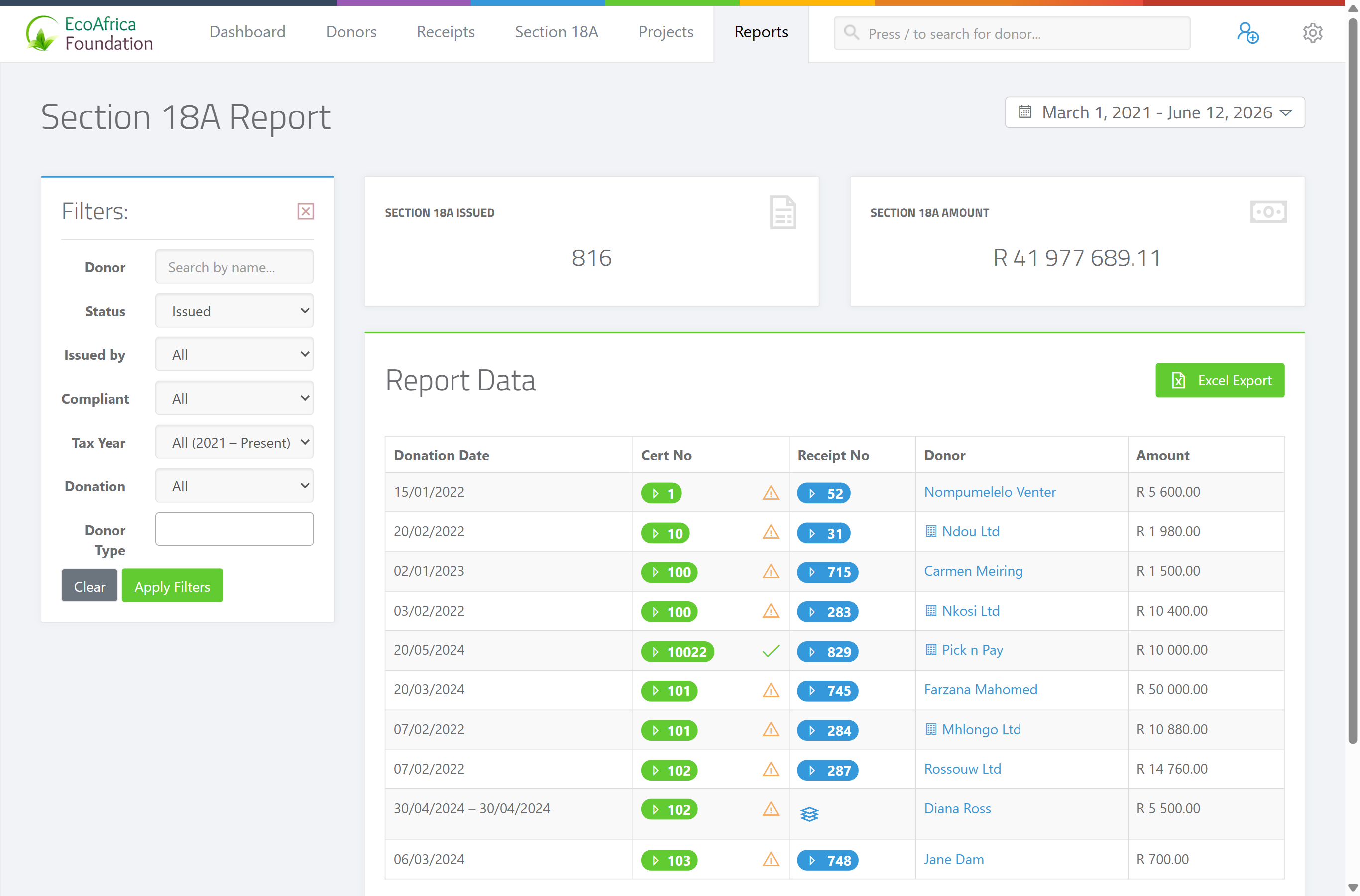
The Section 18A Report lists issued certificates for a chosen date range, with summary cards for Section 18A Issued (the count) and Section 18A Amount (the total value). The table shows, per certificate: Donation Date, Cert No, Receipt No, Donor, and Amount. A green tick marks a 🟢 Compliant certificate and an amber triangle marks a 🟡 Non-compliant one.
Filters
Use the left-hand filters to narrow the report:
- Donor — search by donor name.
- Status — Issued or Revoked.
- Issued by — All, or a specific user who issued the certificates.
- Compliant — All, Compliant, or Non-compliant.
- Tax Year — All, or a specific Section 18A tax year (1 March to end of February).
- Donation — All, Monetary, or Goods in Kind.
- Donor Type — any of Individual, Company, Company (Public), CC, NPC, Trust, Association, Estate, Entity (multi-select).
Click Apply Filters to run the report, or Clear to reset. Change the date range from the date picker at the top right; it offers presets including Today, Yesterday, Last 7 Days, This Month, Last Month, This Tax Year, Last Tax Year and All Tax Years.
Exporting
Click Excel Export to download the filtered report as a spreadsheet for your records or for reconciliation.
The 18A Management views (pending and batch history)
A related 18A Management area helps with bulk issuing:
- Pending Certificates — donors who still have uncertificated Section 18A donations for a tax period, ready to be issued (see Batch and combined Section 18A certificates).
- Batch History — the bulk-issue batches you've run, each with a status (SUCCESS, PARTIAL, FAILED, TIMEOUT) and a result breakdown. Filter by Tax Period, and click View on a batch to see its details and download a report.
Section 18A Revoked
On the IT3D Management page, the Section 18A Revoked tab lists certificates you've revoked. A red count badge on the tab shows how many revoked certificates there are.
⚠️ Important: This matters for SARS. A certificate that was reported to SARS and then revoked must be declared as revoked in a later IT3(d) file, so the revoked list feeds the revoked IT3(d) submission flow (see Generating the IT3(d) file for SARS).
Revoking a certificate
To revoke (also called delete, cancel or void) a certificate — open it, click Revoke Certificate, enter a reason, and confirm; its number is prefixed REVOKED- and it's soft-deleted but still downloadable — see Revoking a Section 18A certificate. That article also covers revoking a certificate already with SARS (revoke is allowed even though editing is locked) and declaring the revocation in a revoked IT3(d) submission.
Field reference (Section 18A Report filters)
| Filter | Values |
|---|---|
| Donor | Name search |
| Status | Issued, Revoked |
| Issued by | All, or a specific user |
| Compliant | All, Compliant, Non-compliant |
| Tax Year | All, or a specific 1 Mar–end-Feb year |
| Donation | All, Monetary, Goods in Kind |
| Donor Type | Individual, Company, Company (Public), CC, NPC, Trust, Association, Estate, Entity |
Common issues & solutions
| What you see | What it means | How to fix it |
|---|---|---|
| A certificate I expected is missing from the report. | A filter or date range is hiding it. | Check the date range and the Status filter (it may be Revoked), and clear other filters. |
| Many certificates show as Non-compliant. | They're missing details SARS requires. | Fix the donor details — see Section 18A eligibility and required donor tax details. |
| I revoked a certificate but the donor already claimed it. | The revocation hasn't reached SARS. | Declare the revocation to SARS in a revoked IT3(d) submission — see Revoking a Section 18A certificate. |
FAQ
How do I see every certificate I've issued this tax year? Open the Section 18A Report, set the Tax Year filter (or the date picker to This Tax Year), and Apply Filters. Export to Excel if you need a copy.
What does Non-compliant mean in the report? The certificate is missing details SARS requires (tax number, ID/registration number, etc.). Fix the donor details so it becomes compliant.
How do I revoke, delete or cancel a certificate? You revoke it — see Revoking a Section 18A certificate for the steps, the REVOKED- numbering, and how to declare a revocation to SARS.
Related
- Why is the Edit or Revoke button greyed out on my certificate?
- How do I correct a Section 18A certificate that's already been submitted to SARS?
- Revoking a Section 18A certificate
- Bulk-issuing Section 18A certificates for a whole tax year
- Generating the IT3(d) file for SARS
- Tracking IT3(d) submissions
- Fixing IT3(d) submission errors
- Batch and combined Section 18A certificates
- Section 18A eligibility and required donor tax details
- Issuing a single Section 18A certificate