Reviewing and merging donor-submitted updates
In short: Donor submissions are held for you to review before they change any record. Save them from the donor's profile (the "Donor update information received" banner) or from the Donor Responses list (Responses to Process → Save Selected). New captures can be auto-matched to an existing donor when Merge duplicate captures is on.
Overview
When a donor submits their details — through a personal update request or the public capture form — the submission is held for you to review before it changes any donor record. You decide whether to save the changes onto the existing donor, merge them with an existing donor, or create a new donor. This is also where you find people who filled in your public capture form: they appear here as submissions, not in donor search, until you save them.
📌 Note: Submissions come from two places: a personal update request sent for an existing donor (see Requesting updated information from a donor), and the public capture form used by brand-new donors (see Configuring donor settings and capture forms).
Before you start
You'll need:
- The Manage Donors permission.
Submissions never overwrite a donor automatically — you always review and save them.
Reviewing a single submission from the donor's profile
Step 1: Open the donor
Open the donor's profile.
Step 2: Open the submission
If the donor has submitted, you'll see a banner reading "Donor update information received on ..." with a Save button. (The Manage menu also shows Save Info in place of Request Info.) Click Save.
Step 3: Compare and save
A window opens showing the donor's current details next to the submitted details so you can compare them. Confirm to apply the submission — the donor record is updated with the new name, contact details, address and tax information, and a note is added recording who saved the update.
A submitted email address or cellphone number becomes the donor's default. The donor's other emails and phone numbers are kept (they are no longer marked as default), so nothing on file is deleted. If the submitted email is already on the donor, that existing entry is reused rather than duplicated.
Reviewing submissions in the Donor Responses list
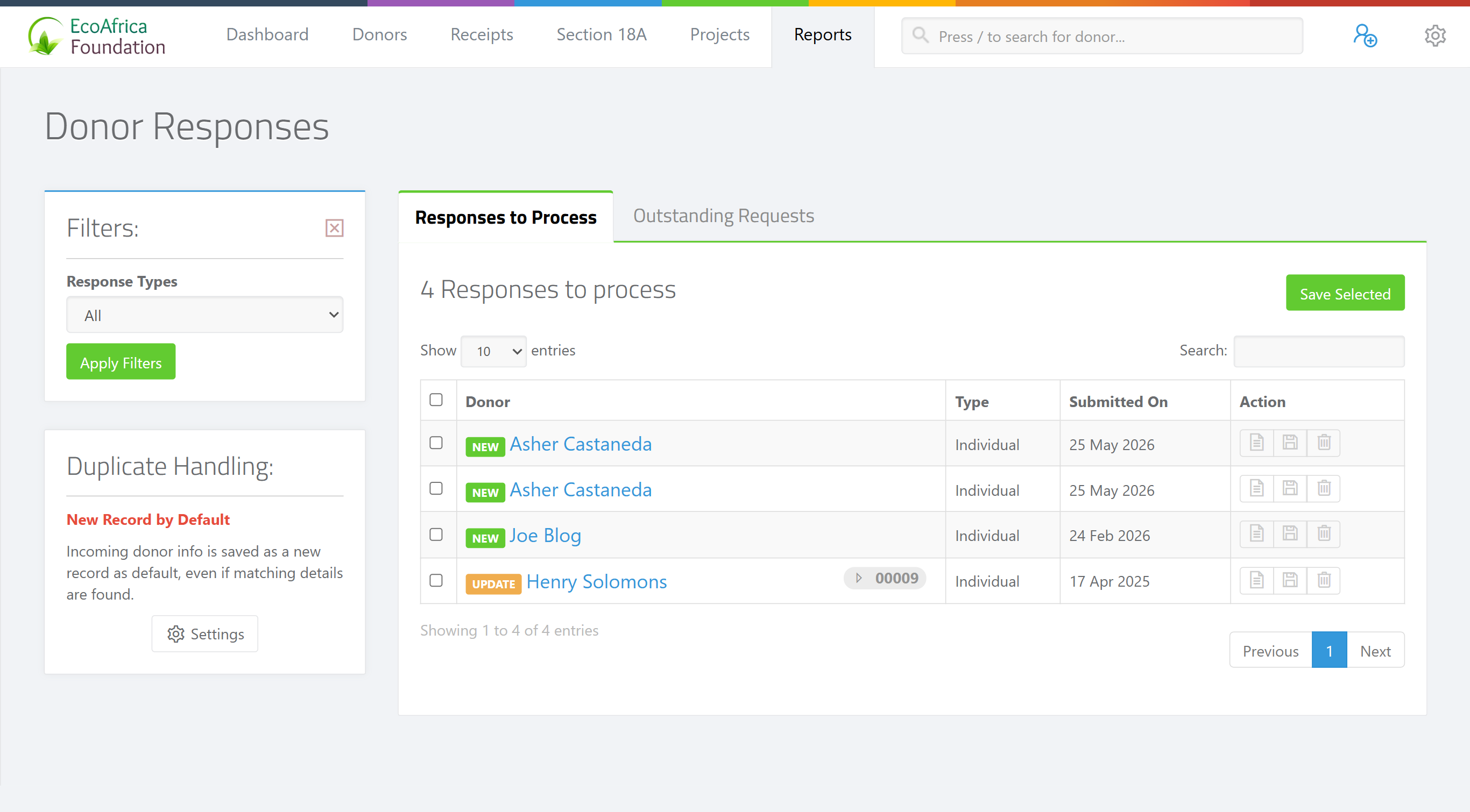
The Donor Responses page lists submissions across two tabs:
- Responses to Process — submissions waiting to be saved. Filter them with Response Types: All, only New (brand-new donors from the public form), or Updates (existing donors who updated their details). Tick the ones you want and click Save Selected to save several at once.
- Outstanding Requests — info requests you've sent that the donor hasn't completed yet. Each shows when it was requested, its expiry date, and whether it is Active or Expired; you can filter by status.
A side panel, Duplicate Handling, shows whether new captures are set to Merge by Default or save as a New Record by Default, with a link to the donor settings to change it.
New donors and duplicate matching
A submission from the public capture form is for a brand-new donor (no existing donor is attached). When you save it, ActiveDonor checks for an existing donor that matches on email or phone number:
- If Merge duplicate captures is switched on in your donor settings (it's on by default), a matching submission is automatically merged into the existing donor instead of creating a duplicate.
- If there's no match, a new donor is created from the submission.
When you save several submissions at once, the result message tells you how many were merged with existing donors and how many new donors were created.
Submissions that ask for a Section 18A certificate
Some submissions carry extra labels in the Responses to Process list:
- 18A claim: the donor listed past gifts they want a Section 18A certificate for. This happens when your organisation has a Donor Updates form with "Let donors request a Section 18A certificate for past gifts" switched on. The donor sees a Your donations section on the form, where they enter a Date, Amount (R), Reference and optional Proof of payment (PDF, JPG or PNG, up to 5 MB) for each gift, up to 10 gifts.
- 18A request {year}: the donor asked for a certificate for that tax year from the donor portal.
- via donor portal: the donor submitted from the My donations donor portal, signed in by an emailed link.
When you open a submission with claimed gifts, the window shows "Section 18A request — N claimed donation(s)". For each gift, choose one option:
- Link receipt #…: attach an existing receipt that is still on the Anonymous donor (ActiveDonor suggests receipts with the same amount within 7 days of the claimed date).
- Create a new receipt for this gift: creates an EFT receipt from the claim, with the description "Claimed via Section 18A request form".
- Skip — could not verify: drops the claim.
After you save, the message tells you how many gifts were receipted and offers an Issue Section 18A → link for the donor. Any note or proof of payment the donor added shows in a "From the donor" panel.
📌 Note: Online donations, recurring debit orders and the donor portal are covered in the Fundraising section.
What this does not do
- It does not change any donor automatically. Every submission waits for you to save it.
- It does not match duplicates on name or address — only on email or phone number. A slightly different email or phone still creates a separate donor (you can merge donors manually afterwards — see Merging duplicate donors).
- It does not let a donor submit twice — a second attempt shows "This profile has already been updated."
Common issues & solutions
| What you see | What it means | How to fix it |
|---|---|---|
| "This profile has already been updated." | The submission has already been applied, or the donor tried to submit twice. | No action needed. |
| "Please select at least one donor update to save." | You clicked Save Selected without ticking any responses. | Tick one or more responses in the list first, then save. |
| A duplicate donor was created from a capture | Matching only happens when Merge duplicate captures is on, and only by email or phone. | Switch on Merge duplicate captures in donor settings. A different email/phone still creates a separate donor — merge them manually (see Merging duplicate donors). |
| A request shows as Expired | The donor didn't complete it within 7 days. | Send a fresh request from the donor's profile — see Requesting updated information from a donor. |
FAQ
Where do I see who filled in my donor form? On the Donor Responses page, under Responses to Process. Filter by New to see only brand-new capture-form submissions.
Why isn't a person who filled in the form showing in donor search? Capture-form submissions are held for review and don't become donors until you save them — see A donor filled in my form but I can't find them — where do they go? for the steps.
How do I save several submissions at once? On Responses to Process, tick the ones you want and click Save Selected.
Why was a duplicate donor created from the form? Either Merge duplicate captures is off, or the email/phone didn't match an existing donor. Matching is by email or phone only.
What does "This profile has already been updated" mean? The submission was already applied (or the donor submitted twice). Nothing further is needed.