Setting reminders for a donor
In short: On the donor's profile, click Add Reminder in the Reminders: panel, choose who it's for, pick a type and a scheduled date, type a message, and click Save Reminder. You need the Manage Donors permission. Reminders are once-off.
Overview
A reminder is a scheduled prompt to do something for a donor — phone them, follow up on a pledge, or wish them a happy birthday. You can assign a reminder to yourself or to a colleague. This article explains how to add, complete and edit donor reminders.
Before you start
You'll need:
- The Manage Donors permission.
- The donor's profile open — reminders live in the Reminders: panel on the left.
Adding a reminder
Step 1: Open the Schedule a reminder window
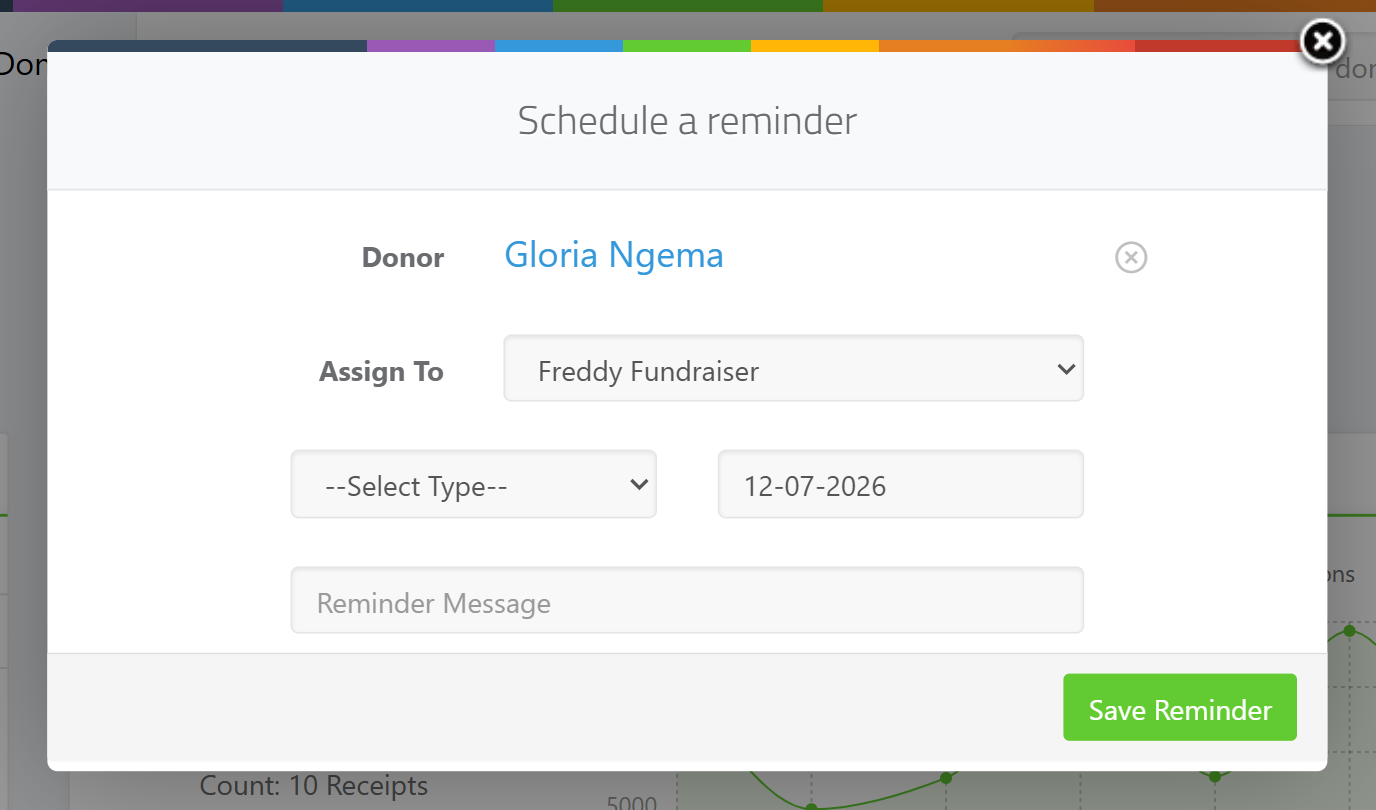
On the donor's profile, find the Reminders: panel and click Add Reminder. The Schedule a reminder window opens with the donor already selected.
Step 2: Choose who it's for
In Assign To, leave it as --Assign to Self-- to keep it for yourself, or pick a colleague from the list.
Step 3: Choose a type
Pick a type from the --Select Type-- dropdown. The available reminder types are: Phone, Email, Event, Grant, Pledge, Review, Meeting, Renewal, Donation, Birthday, Feedback, Follow-Up, Volunteer, Section 18A, Stewardship and Anniversary.
Step 4: Set the date and message
Set the scheduled date (it defaults to one month from today; you can pick any date), then type a Reminder Message describing what to do.
Step 5: Save
Click Save Reminder. You'll see "Reminder has been scheduled."
Completing or editing a reminder
In the Reminders: panel on the donor's profile, each reminder shows its type as a coloured label and its message, with two controls:
- A tick to mark the reminder as complete.
- A pencil to edit it (change its type, date, message or assignment).
What this does not do
- Reminders are once-off. Recurring schedules (weekly, monthly, annually) are not available.
- A reminder assigned to --Assign to Self-- goes to you, not the whole team — choose a colleague in Assign To if it's for them.
Field reference
| Field | Required? | Notes |
|---|---|---|
| Donor | Yes | Pre-filled when added from a donor profile. |
| Assign To | Optional | Defaults to --Assign to Self--. |
| Type | Yes | One of the 16 types listed above. |
| Scheduled date | Yes | Must be a date; defaults to one month from today. |
| Reminder Message | Yes | What to do. |
Common issues & solutions
| What you see | What it means | How to fix it |
|---|---|---|
| The reminder won't save | A type, a scheduled date and a reminder message are all required. | Make sure none is empty, then click Save Reminder. |
| You wanted a repeating reminder | Reminders are once-off. | Add a new reminder each time; recurring schedules aren't available. |
| A colleague didn't see the reminder | It was assigned to you, not them. | Edit it and choose the colleague in Assign To. |
FAQ
How do I set a reminder for a donor? On the donor's profile, click Add Reminder, choose a type and date, type a message, and click Save Reminder.
Can I assign a reminder to a colleague? Yes — choose them in Assign To. Leave it as --Assign to Self-- to keep it for yourself.
Can reminders repeat weekly or monthly? No — reminders are once-off. Add a new one each time.
How do I mark a reminder done? Click the tick next to it in the Reminders: panel.
When is a reminder scheduled by default? One month from today. You can change the scheduled date to any date.