Creating a receipt
In short: Click Receipts, then the green Add Receipt button, choose the donor, enter the amount and donation date, pick the receipt method and type, allocate the full amount to one or more projects, and click Create Receipt. At least one project must exist, and you need the Add Receipt permission.
Overview
A receipt records a single donation from a donor: the amount, the date received, how it came in (the receipt method), what kind of receipt it is (the receipt type), and how it is split across one or more projects (allocations). Capturing a receipt is the starting point for everything else — donor history, reports, and Section 18A tax certificates all build on it.
This article covers capturing one receipt by hand. To create many receipts at once from a bank file, see Uploading receipts via CSV (bulk-import a bank or accounting CSV into receipts).
Before you start
You'll need:
- The Add Receipt permission.
- At least one project — every receipt must be allocated to a project.
- The donor (you can add a new one during capture).
⚠️ Important: A donor marked deceased cannot be issued a receipt. If you pick one, you'll see "This donor is deceased. Cannot issue receipt."
Capturing a receipt
Step 1: Open the Add Receipt form
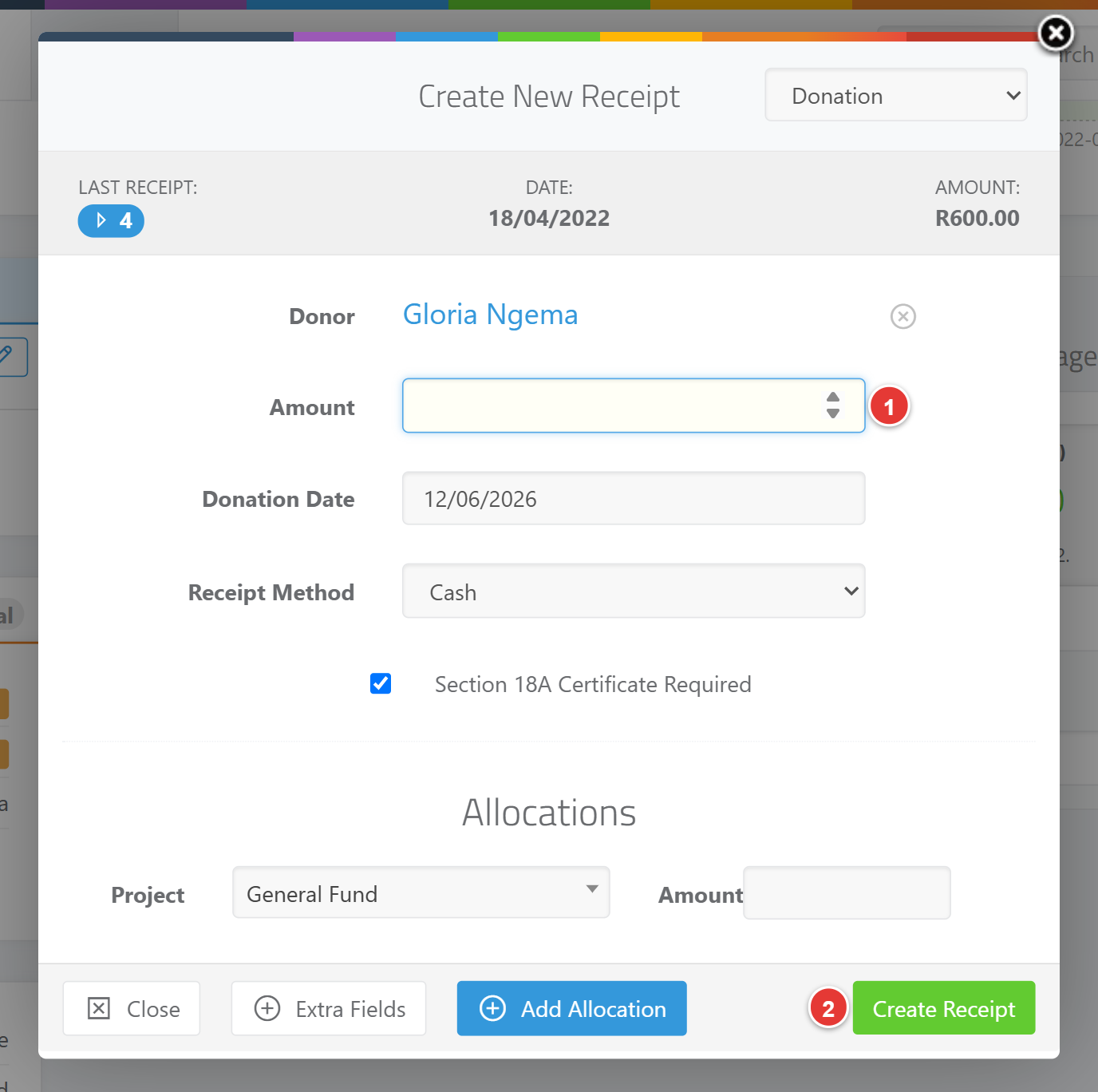
Click Receipts in the top navigation bar, then the green Add Receipt button (top right). The Create New Receipt pop-up opens.
Step 2: Choose the donor
Type in the Search for donor... box and pick the donor. If they don't exist yet, click New Donor to add them first. If you started from a donor's own page, the donor is already selected.
When you select a donor, a panel may show their LAST RECEIPT number, date and amount, so you can spot an accidental re-entry.
Step 3: Set the receipt type
Use the receipt-type dropdown at the top right of the pop-up (for example Donation). See Receipt types (the kinds of receipt you can issue, e.g. Donation, Sale).
Step 4: Complete the receipt fields
- Amount — the rand amount of the donation (between 0.01 and 999,999,999.99).
- Donation Date — the date received. Defaults to today; format dd/mm/yyyy. Must be today or earlier and within the last 5 years.
- Receipt Method — how the donation came in (defaults to your default method). See Receipt methods (what they are and managing them).
- Section 18A Certificate Required — tick if a Section 18A tax certificate should be issued. This only flags the receipt; it does not issue the certificate. See Receipt fields and the Section 18A toggle.
Step 5: Allocate the donation to a project
In the Allocations section, choose a project and enter the amount. Click Add Allocation to split across more than one project. The allocation amounts must add up exactly to the receipt amount. See Allocating receipts to projects.
Step 6: Add extra fields (optional)
Click Extra Fields to enter a foreign-currency amount, a reference (internal use), or receipt notes. See Receipt fields and the Section 18A toggle for what each does.
Step 7: Save
Click Create Receipt. A preview/confirmation appears summarising the receipt; confirm to save it. You're taken to the new receipt, which shows its receipt number.
How the receipt number is set
The receipt number is assigned automatically when you save — you don't type it in. The next number comes from Last Receipt No. in your receipt layout settings; the next receipt is one higher. To change where numbering continues from, set Last Receipt No. (you can raise it but not below the highest existing number). See Receipt layout settings.
Duplicate detection
If you enter an amount and date that exactly match this donor's last receipt, ActiveDonor warns you with "Duplicate receipt detected. Please check the amount and date received." and disables the submit button. If the donation is genuinely separate, tick Allow duplicate receipt to proceed.
Automatic emailing
If your organisation has ticked Send receipt email automatically once captured? in receipt settings, the receipt PDF is emailed to the donor shortly after it's saved. See Receipt layout settings.
What this does not do
- It does not issue a Section 18A certificate. The Section 18A Certificate Required tick only flags the receipt — issuing happens afterwards. See Issuing a single Section 18A certificate.
- It does not let you type a custom receipt number per receipt. Numbering is automatic from Last Receipt No. in Receipt layout settings.
Field reference
| Field | Required? | What to enter |
|---|---|---|
| Donor | Yes | The donor making the donation. Cannot be a deceased donor. |
| Receipt Type | Yes | The kind of receipt (e.g. Donation). |
| Amount | Yes | The rand amount (between 0.01 and 999,999,999.99). |
| Donation Date | Yes | Date received, dd/mm/yyyy. Must be today or earlier, and within the last 5 years. |
| Receipt Method | Yes | How the donation was received. |
| Section 18A Certificate Required | No | Tick to flag that a Section 18A certificate should be issued. |
| Allocations (project + amount) | Yes | At least one project allocation; amounts must total the receipt amount. |
| Forex Amount / currency | No | A foreign-currency amount and its currency. See Converting foreign-currency donations. |
| Reference | No | Internal payment reference (max 255 characters). |
| Receipt Notes / Description | No (Yes for Goods in Kind) | Notes shown on the PDF. Required when the receipt method's 18A type is Goods in Kind. |
Common issues & solutions
| What you see | What it means | How to fix it |
|---|---|---|
| "The total allocations amount must equal receipt amount entered above." | Your project allocations don't add up to the receipt amount. | Adjust the allocation amounts so they total the receipt amount exactly. |
| "This donor is deceased. Cannot issue receipt." | The selected donor is marked deceased. | Choose a different donor. |
| "The date received must be within the last 5 years." | The donation date is more than 5 years ago (or in the future). | Enter a date today or earlier, within the last 5 years. |
| "Duplicate receipt detected. Please check the amount and date received." (submit disabled) | The amount and date match the donor's last receipt. | If it's a separate donation, tick Allow duplicate receipt. |
| "A description of the goods is required for Goods in Kind donations (needed for Section 18A)." | The chosen receipt method's 18A type is Goods in Kind, which needs a description of the goods. | Open Extra Fields and complete the Description of Goods. |
| "A donor name is required." | No donor was selected. | Search for and select the donor (or add a new one). |
| "Please enter a project allocation" | No project allocation was entered. | Add at least one allocation in the Allocations section. |
FAQ
How do I add a receipt? Click Receipts, then Add Receipt, choose the donor, enter the amount and donation date, pick the method and type, allocate the full amount to a project, and click Create Receipt.
Can I add a receipt on the mobile app? Capture receipts in ActiveDonor through your web browser. The site is responsive, so you can open it on a phone or tablet browser and add a receipt the same way as on a computer.
Can I change the receipt number / set a custom receipt number? Not per receipt — the number is assigned automatically. To control where numbering continues, set Last Receipt No. in Receipt layout settings. You can raise it, but not below the highest existing receipt number.
How do I change the receipt date / donation date? Enter it in the Donation Date field (dd/mm/yyyy). It defaults to today; it must be today or earlier and within the last 5 years. To change the date after saving, see Editing or deleting a receipt (note the date locks once a Section 18A certificate is issued).
Why is the Create Receipt button disabled? Most often a duplicate warning ("Duplicate receipt detected...") — tick Allow duplicate receipt if it's a separate donation. It can also be a deceased donor or allocations that don't total the amount.
Do my allocations have to add up to the amount? Yes — the project allocation amounts must total the receipt amount exactly, or you'll see "The total allocations amount must equal receipt amount entered above."
Related
- Receipt fields and the Section 18A toggle
- Editing or deleting a receipt
- Receipt types
- Receipt methods (what they are and managing them)
- Allocating receipts to projects
- Converting foreign-currency donations
- Uploading receipts via CSV
- Printing, downloading and emailing a receipt
- Receipt layout settings
Need a hand?
If a receipt won't save and the fixes above don't help, contact ActiveDonor support with the donor's name and the amount and date you're trying to capture.